EVA Release v3.1

EVA v3.1: Easier Connections, Clearer Understanding
EVA v3.1 focuses on making EVA easier to access for users operating multiple EVA servers and large numbers of cameras, while helping administrators manage accounts and permissions more efficiently.
This release introduces unified authentication and SSO, which lets users access Apps across multiple EVA servers with one login; Knowledge-based EVA Chat, which can answer questions using manuals and customer documents; and camera groups, which organize cameras by work area and purpose.
This release includes the following major updates:
- Unified authentication and SSO for accessing multiple EVA servers with one login
- Knowledge-based EVA Chat grounded in EVA manuals and customer documents
- Camera groups for organizing cameras by work area, location, and purpose
- M2M authentication for secure API access from external systems
Unified Authentication and SSO Across Multiple EVA Servers
A single EVA server can connect approximately 100 cameras. As operations grow and multiple EVA servers need to be managed, users previously had to log in to each server repeatedly, while administrators had to configure accounts and permissions separately on every server.
As the number of servers increases, so does the work of creating the same users repeatedly and managing password policies and permissions independently. A permission change or account deactivation on one server could also leave the previous state in existing sessions on other servers.
EVA v3.1 applies unified authentication and SSO through a central authentication server.
Log in once through the App on EVA Server A
  → Central authentication completed
  → Access the App on EVA Server B
  → Continue without another login
After the initial login, users can access every EVA server for which they have permission without entering another ID or password. Administrators can manage users and server-specific access permissions from a central account screen instead of creating users individually on every server.
Whether there are two EVA servers or dozens, users no longer need to log in to each server separately, and administrators can apply the same account and security policies from one place.
Security policies are applied consistently
| Policy | Behavior |
|---|---|
| Password | Length and composition rules, recent-password reuse prevention, 60-day expiration |
| Failed login | Temporary lock after five incorrect password attempts |
| Long-term inactivity | Automatic lock after 30 days without access |
| Session expiration | Session expires after 60 minutes of inactivity |
| Concurrent login | The most recent login is kept and the previous session is terminated |
| Global logout | Logging out from one server also ends sessions on other servers |
| Permission changes | Existing sessions on multiple servers are ended and recreated with the new permissions |
Account deletion, deactivation, and permission changes are now reflected immediately in existing sessions across multiple servers. Administrators do not need to configure the user again on every server or log the user out manually.
M2M authentication for external integrations
EVA APIs can be called not only by browser-based users, but also by external systems such as EVA Mentor and EVA Scope.
Because external systems do not log in as a user, EVA applies M2M authentication using a Client ID and Client Secret instead of a user account.
External system
  → Request an Access Token with Client ID + Client Secret
  → Call EVA App APIs within the permitted scope
  → EVA Backend validates the token and API permissions
The API areas and Read/Write permissions required by each external system can be limited, so a general user account does not need to be shared for integrations.
What changes for users and administrators?
- No repeated login is required when using multiple EVA servers.
- Users and access permissions can be managed centrally instead of being created separately on every server.
- Permission changes and account deactivation are reflected immediately in existing sessions.
- Administrators can control concurrent logins and log out across all servers.
- External systems use limited M2M permissions instead of user accounts to access EVA APIs.
Knowledge-Based Chat Using EVA Manuals and Customer Documents
When operating EVA, users often need to check manuals for questions about detection intervals, scenario configuration, and how to use features. Previously, answers were mainly generated by placing content for each question type in the Chat prompt in advance.
In EVA v3.1, Chat searches Knowledge for documents related to the question and generates an answer grounded in the retrieved content.
User question
  → Search for related documents
  → Build the relevant pages into the answer context
  → Generate an answer grounded in the documents
💡 For technical details on the tool-calling architecture and Knowledge retrieval flow behind Knowledge-based Chat, see the Tech Blog.
→ Tech Blog | From Router-Based Agents to Tool-Calling Agents
This allows EVA to do more than generate a general answer: it can hold a conversation based on the features and usage instructions defined in the EVA manuals.
Customer-specific documents can also be added
In addition to the standard EVA manuals, customers can add the documents they need for their operations to Knowledge.
For example, the following documents can be used together:
- Customer-specific operating manuals
- Site-specific equipment or process guides
- Internal safety regulations and work procedures
- Scenario operation guides created during EVA deployment
- Inspection and response documents used only at a specific server or site
Added documents go through the Ingest process and are managed as searchable Knowledge. When a user asks a question, Chat finds related documents and uses them as the basis for its answer.
“When an alarm for a worker not wearing a safety helmet occurs in our process, what should we check first?”
If the customer’s operating guide contains the relevant procedure, EVA Chat can answer based on that site-specific procedure instead of providing only a general explanation.
How document-based answers work
| User question | Information referenced by Chat |
|---|---|
| “What is the current detection interval?” | The actual EVA Runtime setting |
| “What is a detection interval?” | The feature description in the EVA manual |
| “What should we do when a fire alarm goes off at our site?” | Customer or site response documents |
| “How do I change the detection interval to 30 seconds?” | The configuration procedure in the EVA manual |
Questions that require current system state use Runtime information, while questions about features or operating procedures search the relevant Knowledge documents.
What changes for users?
- Customer and site-specific documents can be added to use organizational knowledge.
- Answers grounded in relevant document content can be distinguished from general answers.
- Users can check current settings, feature explanations, and site operating procedures in one conversation.
Camera Groups That Show Only the Cameras You Need
Previously, every user saw the same camera list. As the number of cameras grew, it became harder to find the right camera and more difficult to limit access based on each user.
EVA v3.1 lets administrators group cameras and assign only the groups each user needs.
For example, cameras can be organized into groups such as:
- Plant A
- 2FCC process
- Safety helmet detection
- First-floor entrance
A camera can belong to multiple groups at the same time. This makes it possible to combine process, location, and business-purpose criteria instead of classifying each camera in only one way.
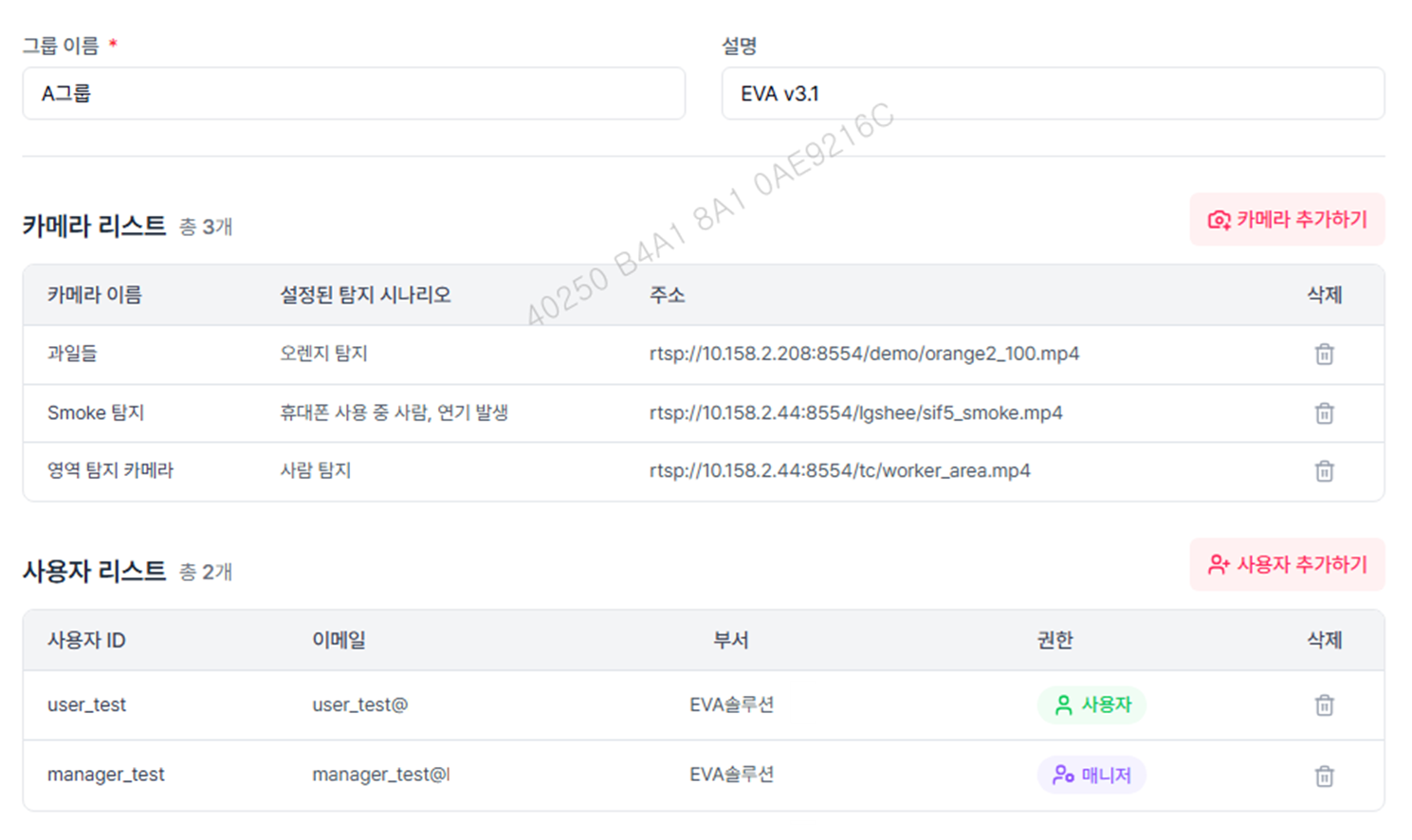
How to use camera groups
- Enter a group name and description.
- Add cameras to the group.
- Assign the users who should be able to view the group.
- Modify the groups assigned to existing cameras when needed.
- Change the display order based on importance as the number of groups grows.
📷 Camera group settings
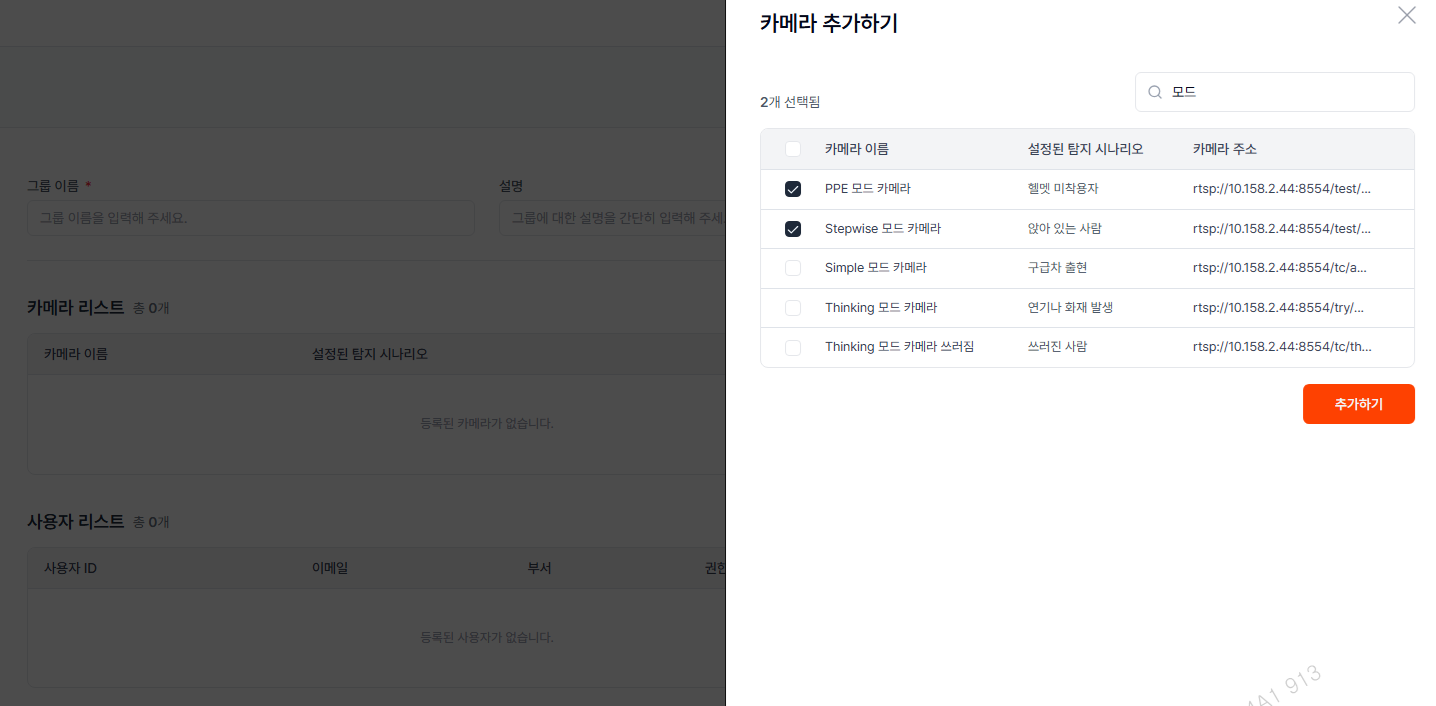
When adding cameras to a group, users can select the required cameras from the registered camera list.
📷 Adding cameras to a group
Permissions by user type
| User | Capabilities |
|---|---|
| Admin | Create and edit groups, add cameras and users, and manage group order |
| Manager | Assign their groups to cameras and manage assigned cameras |
| User | View cameras in their assigned groups and cameras not assigned to a group |
If a Manager does not belong to any group, cameras can still be registered without a group. Cameras not connected to a group remain visible to users who need to access them, as before.
What changes for users?
- Users can quickly check the cameras assigned to them.
- The right camera is easier to find even in environments with many cameras.
- Cameras can be organized around processes, locations, and operational purposes.
- Separating access by user improves security.
- Changing the group order also changes the order shown in the camera list and related settings screens.
A Suggested EVA v3.1 Workflow
The features in this release can be used together in the following workflow:
- Log in with SSO: Log in once and access the EVA servers you are authorized to use.
- Configure camera groups: An administrator creates groups by process or location and assigns the responsible users.
- Check the required cameras: Users view only the cameras they are authorized to access.
- Add Knowledge documents: The customer’s manuals and site operating documents are registered in EVA Knowledge.
- Use EVA Chat: Users ask questions about current settings, feature usage, and site response procedures based on the documents.
For example, an administrator can group cameras for the 2FCC process across multiple EVA servers and make them visible only to the responsible staff. After logging in once with SSO, a staff member can check the required cameras without logging in to each server and ask EVA Chat, “When a fire alarm occurs, what should I check first according to our site procedure?”
Closing: Less Repetition, More Site Knowledge
EVA v3.1 focuses on reducing the repeated work involved in operating multiple EVA servers and many cameras: logging in, managing accounts and permissions, finding cameras, and checking manuals.
- SSO connects login and account/permission management across multiple EVA servers.
- Knowledge-based Chat uses EVA manuals and customer documents as the basis for conversation.
- Camera groups show users only the cameras they need.
- M2M authentication provides external systems with only the API permissions they require.
As a result, EVA is evolving into a platform that is easier to access, able to use organizational knowledge, and adaptable to each user’s work.
EVA will continue expanding its Knowledge-based capabilities so that customer documents and operating practices can be used more effectively within the product.