Advanced Configuration
What You'll Learn in This Guide
Refer to this step when you want to operate multiple cameras together, collaborate with team members in EVA, or build a more sophisticated alert system. EVA's advanced management features allow you to operate efficiently even in large-scale environments.
Apply the same detection rules to multiple cameras at once using Scenario Templates
Improve visibility in low-light or backlit environments with Brightness Adjustment
Receive real-time alerts in external tools like Teams or Slack via Webhook
Classify detection scenarios by purpose using Categories
Quickly access key cameras using the Camera Favorites feature
Deploy large numbers of cameras at once with Bulk Camera Registration
Set Up Scenario Templates
Step Description
Scenario Templates let you save frequently used detection scenarios and reuse them across multiple cameras. Once you've created and validated a scenario, you can quickly apply it when registering new cameras — reducing repetitive setup work and maintaining consistent detection configurations.
- Use this when
- You want to set up new cameras quickly
- You need to apply the same hard-hat violation detection scenario across multiple factory lines
- You want to deploy the same intrusion detection scenario to multiple building entrances
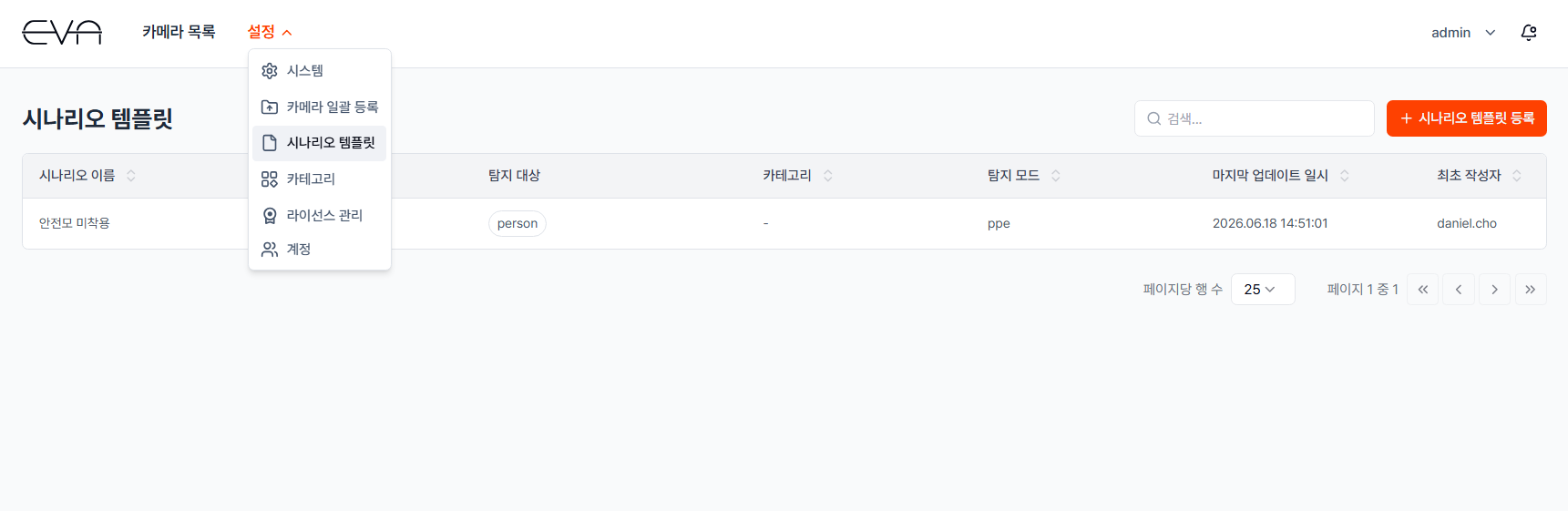
Actions
- Access the Settings menu
- Click the "Settings" menu at the top of the EVA main page
- Click "Scenario Templates"
- Register a new template
- Click the "+ Register Scenario Template" button in the top-right corner
- Write and generate the scenario prompt
- Write the detection conditions in natural language — aim for something applicable across multiple cameras
- Example: "Alert me if a worker enters the work zone without wearing a hard hat"
- Click "Generate Scenario" — the EVA Agent will automatically create a structured scenario
- Set the scenario name and category, then save
- Set a name and category for the generated scenario
- If the content looks correct, click "Save" to save the template
- Apply to a camera
- When registering or editing a camera, select "Load Template" in the detection scenario step to apply the saved template
Brightness Adjustment
Step Description
The Brightness Adjustment feature lets you brighten footage in dark environments or darken it when it's too bright, improving AI detection performance. It is particularly effective in nighttime or backlit conditions.
- When brightness adjustment is needed
- Brighten: Low-light environments at night, or underground parking lots and warehouses without natural light
- Darken: Direct sunlight causing overexposed footage, or backlit environments
- Default (Auto) mode: Automatically adjusts based on the current camera feed information
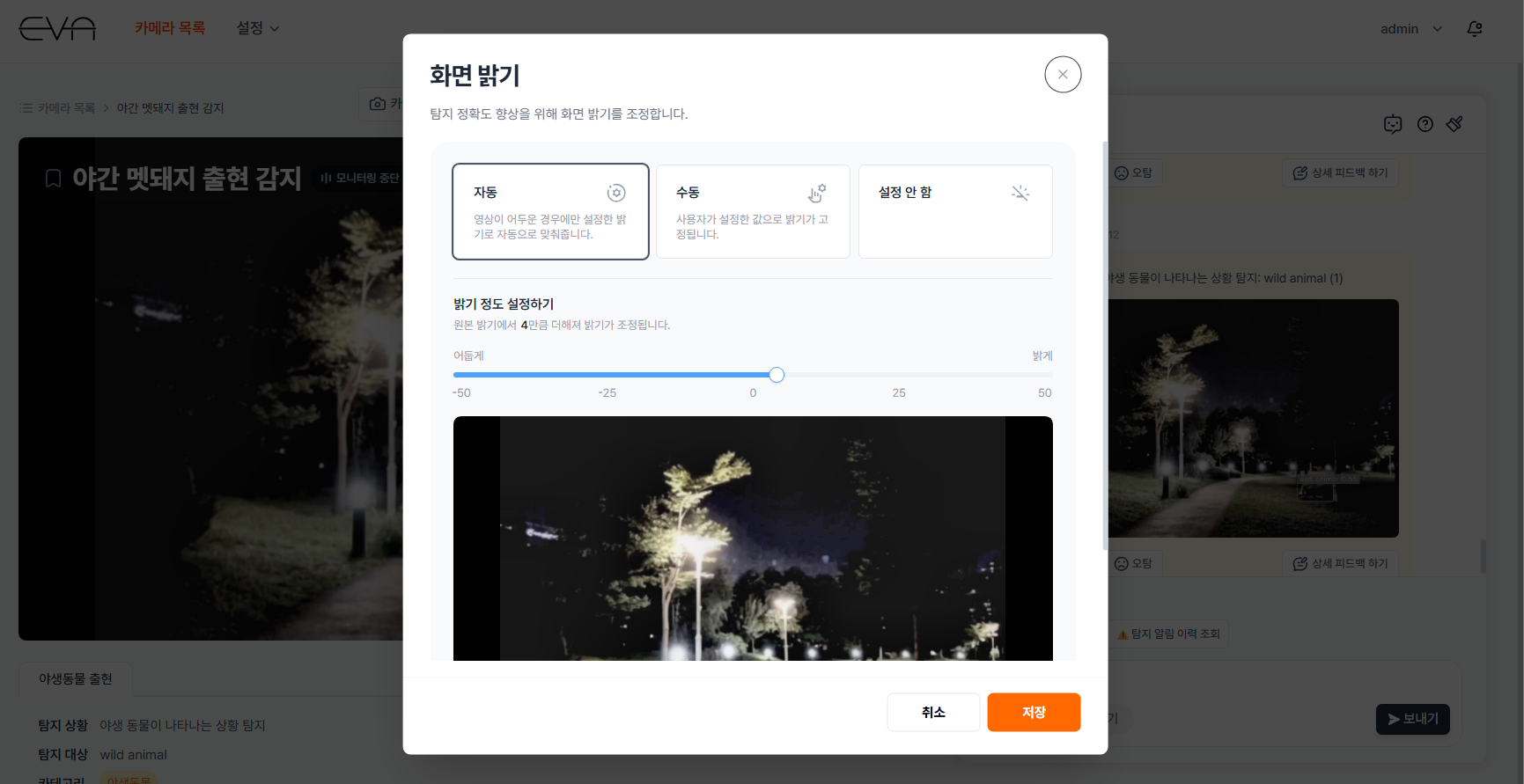
Actions
- Open the camera monitoring page
- Select the camera whose brightness you want to adjust
- Click the "(...)" button at the top of the screen → Click "Screen Brightness"
- Click the "(...)" button in the top-right of the camera monitoring screen
- Click "Screen Brightness" from the menu — the brightness settings panel opens
- Select a brightness mode
- Default: Automatically adjusts based on the current camera feed information
- Manual: Directly adjust the slider to set your preferred brightness
- Invert Brightness: Inverts the brightness of the screen
- Adjust the slider in Manual mode
- Slide right to brighten, left to darken
- Check the preview at the bottom to confirm the result in real time
- Click "Apply"
- Click "Apply" — the setting takes effect immediately
Webhook Alerts
Step Description
Setting up a Webhook lets you receive EVA's detection alerts in real time through collaboration tools like Microsoft Teams. Your team can instantly share information and respond quickly.
- Benefits of Webhook
- Real-time team alerts: All team members receive detection notifications simultaneously
- Immediate response: Receive alerts without continuously watching the EVA screen
- Record keeping: All alerts are logged in Teams, Slack, etc.
- Mobile push: Alerts are also pushed to team members' mobile apps
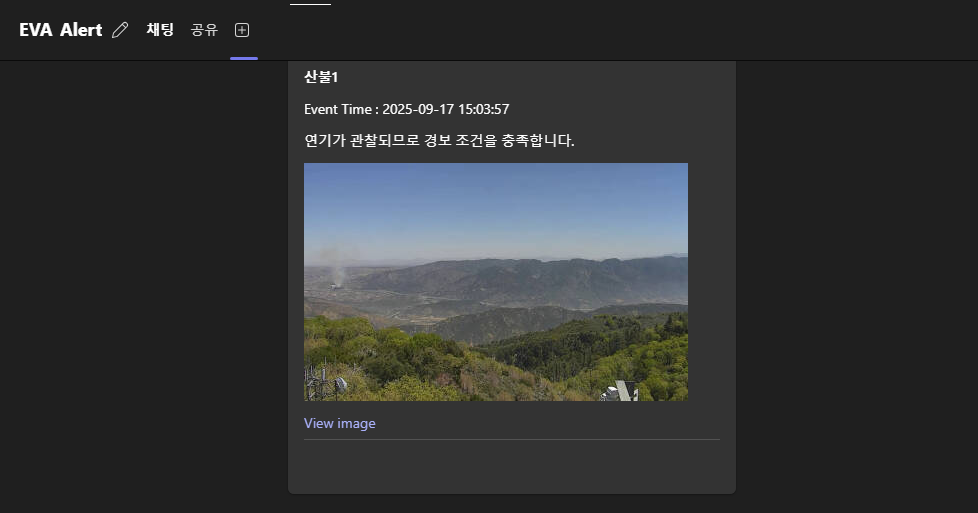
Microsoft Teams Webhook Setup
- Generate a Webhook URL in Microsoft Teams
- First, create or select an existing chat in Teams to receive EVA alerts.
- Open the Workflows app in Teams, then search for and select the "Send a webhook alert to a chat" template.
Select the webhook alert template in Workflows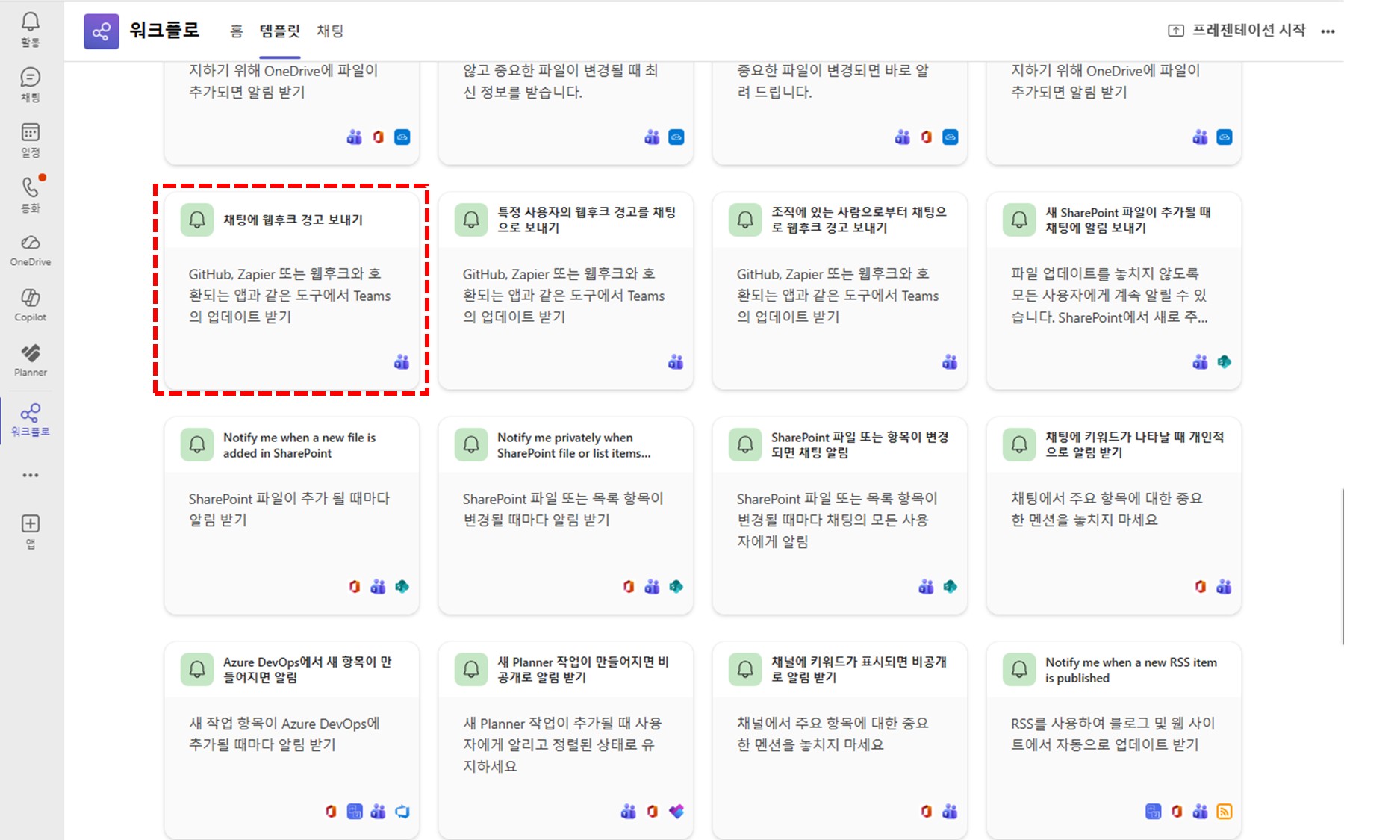
- In the template's parameter settings, select the chat you prepared and click Save.
- Once the workflow is created, click "Copy webhook link" to copy the Webhook URL.
Copy the webhook link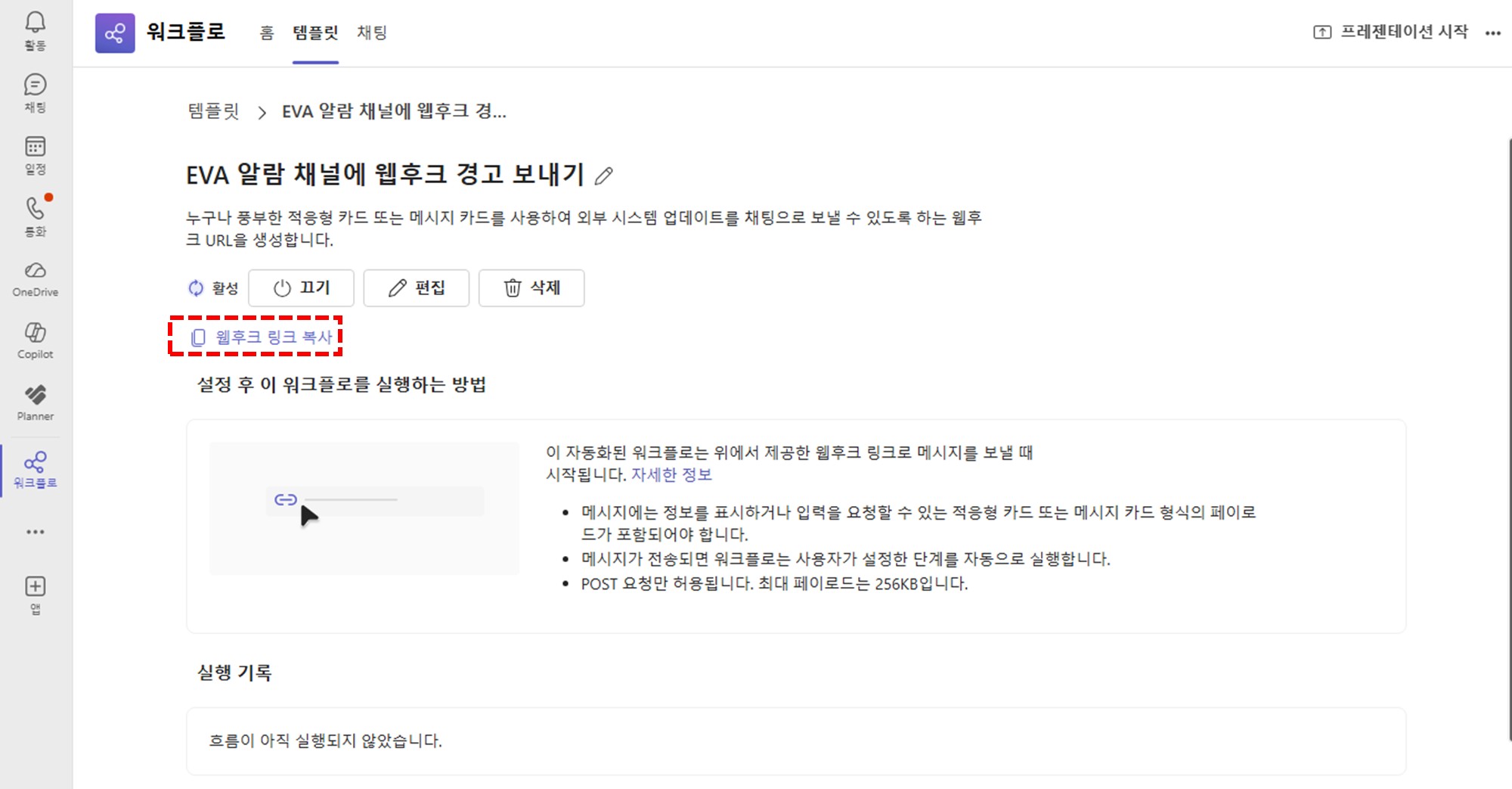
- Open Webhook settings in EVA
- Go to the monitoring page for the camera you want to configure
- Click the swirl-shaped button at the top of the screen
- Enter Teams Webhook details
- Name: Enter an alert name (e.g., "Safety Team Teams Channel")
- URL: Paste the Webhook URL copied from Teams
- Click Save
- Click "Save" to complete the Webhook configuration
- Verify alert delivery
- After a detection event, the alert is automatically sent to the configured Webhook
- Each alert includes detection time, camera info, and detection image
Slack Webhook Setup
- Generate a Webhook token in Slack
- Create or select an existing Slack channel to receive EVA alerts.
- Click "More options" at the top-right of the channel, then click "Open channel details".
Open channel details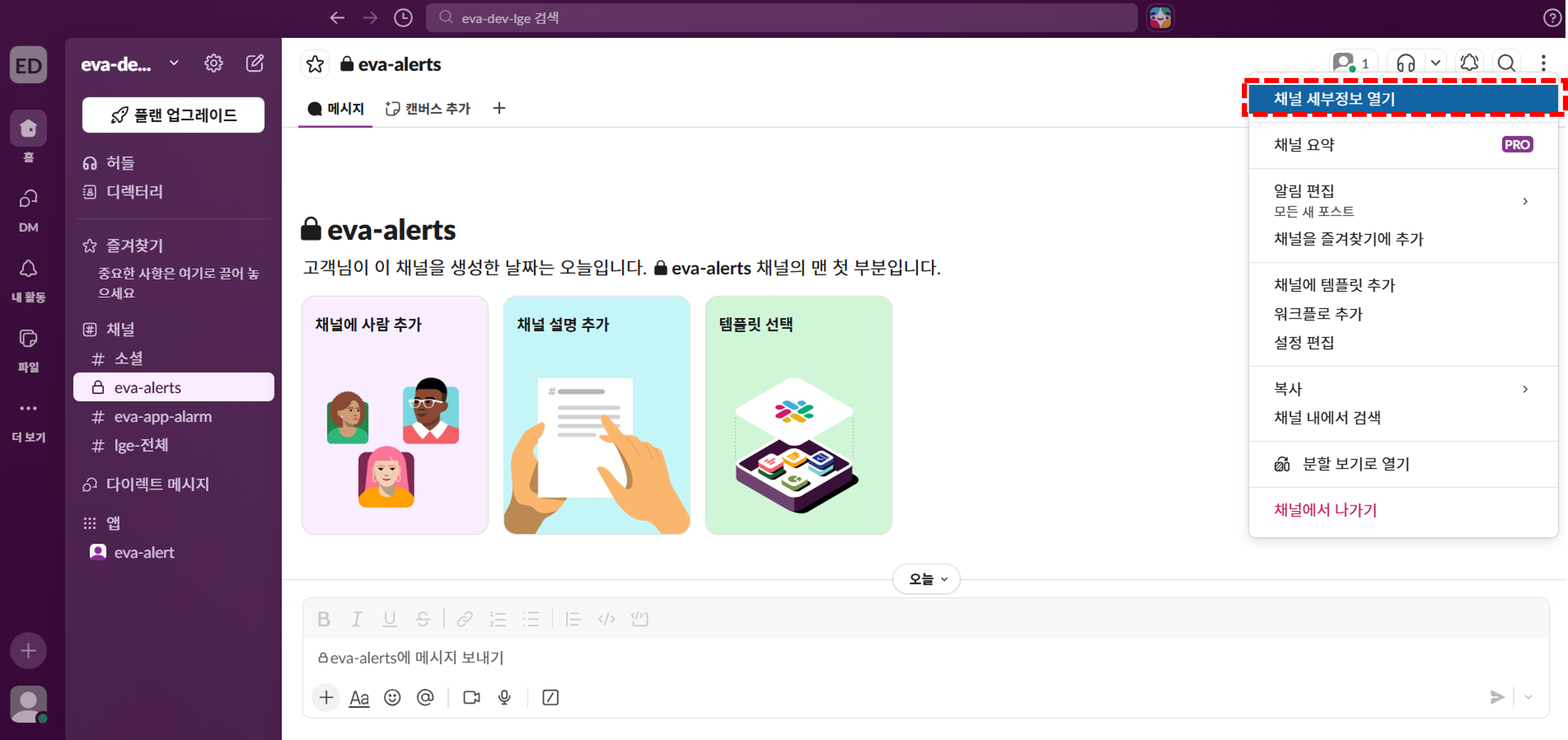
- Copy and save the Channel ID shown at the bottom.
Copy the Channel ID at the bottom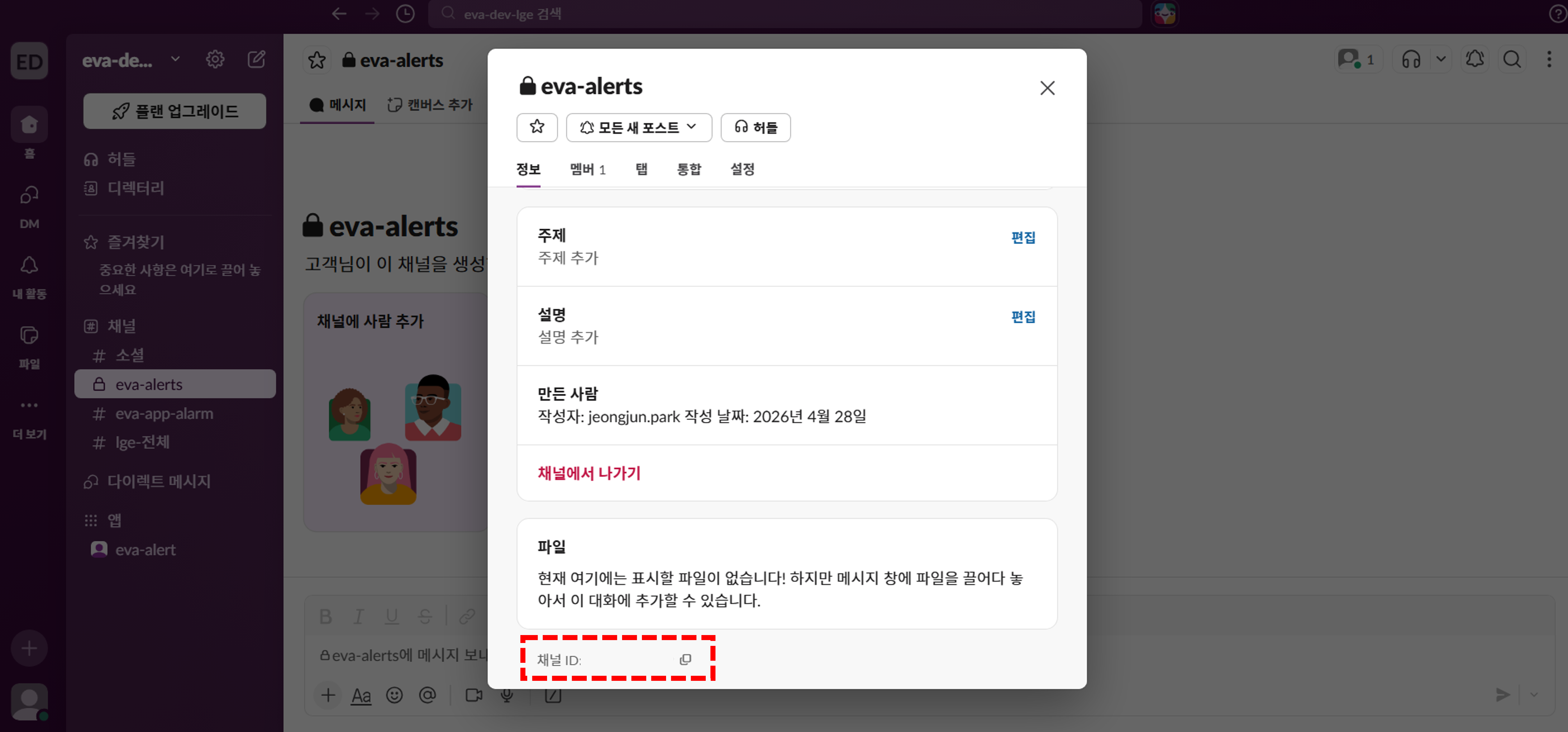
- Go to https://api.slack.com/apps
- Click Create New App and choose From scratch.
- Set the app name and select the workspace to use.
Set app name and workspace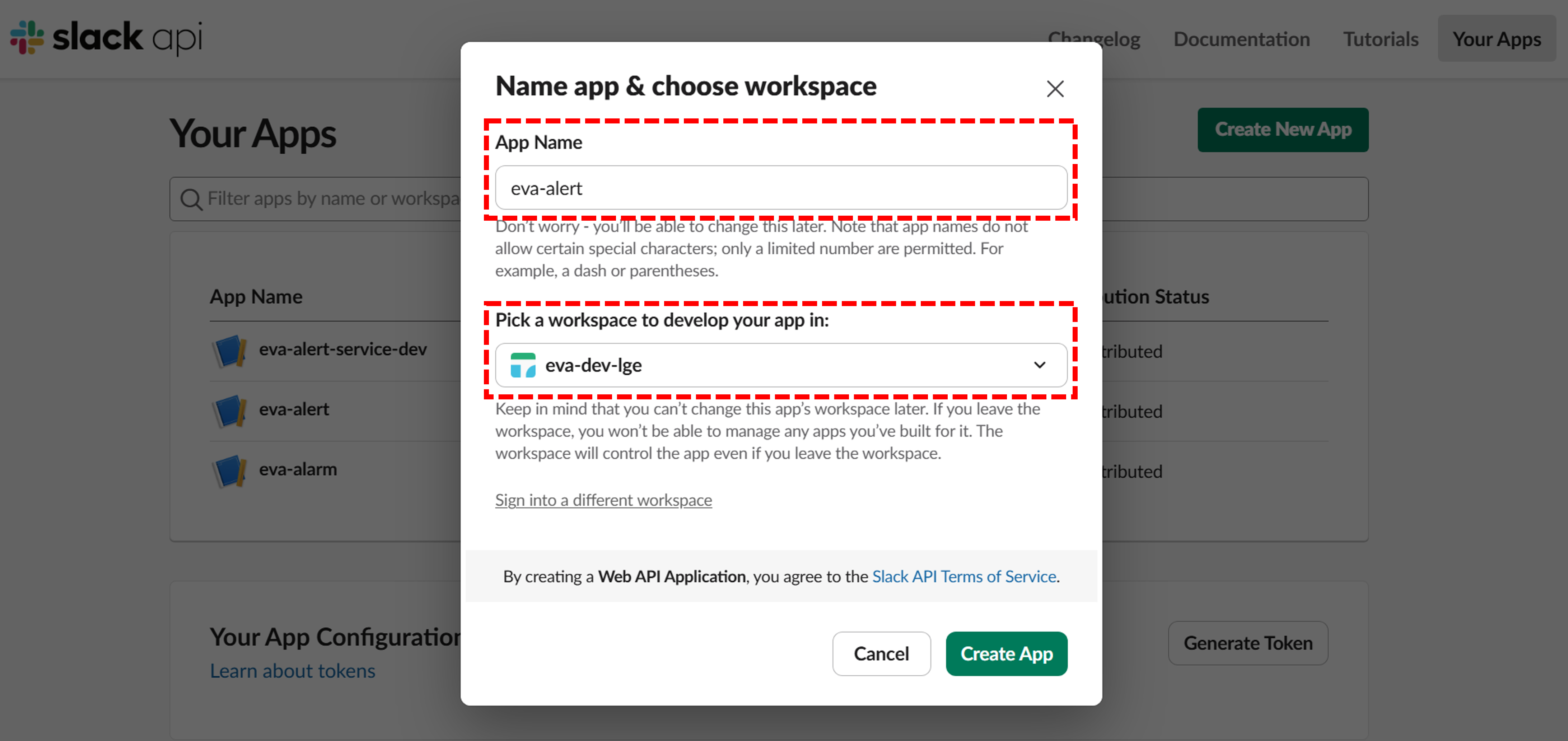
- For the app to post to the channel, add the following permissions under OAuth & Permissions.
- For a public channel: add channels:join, chat:write, files:write
Set public channel permissions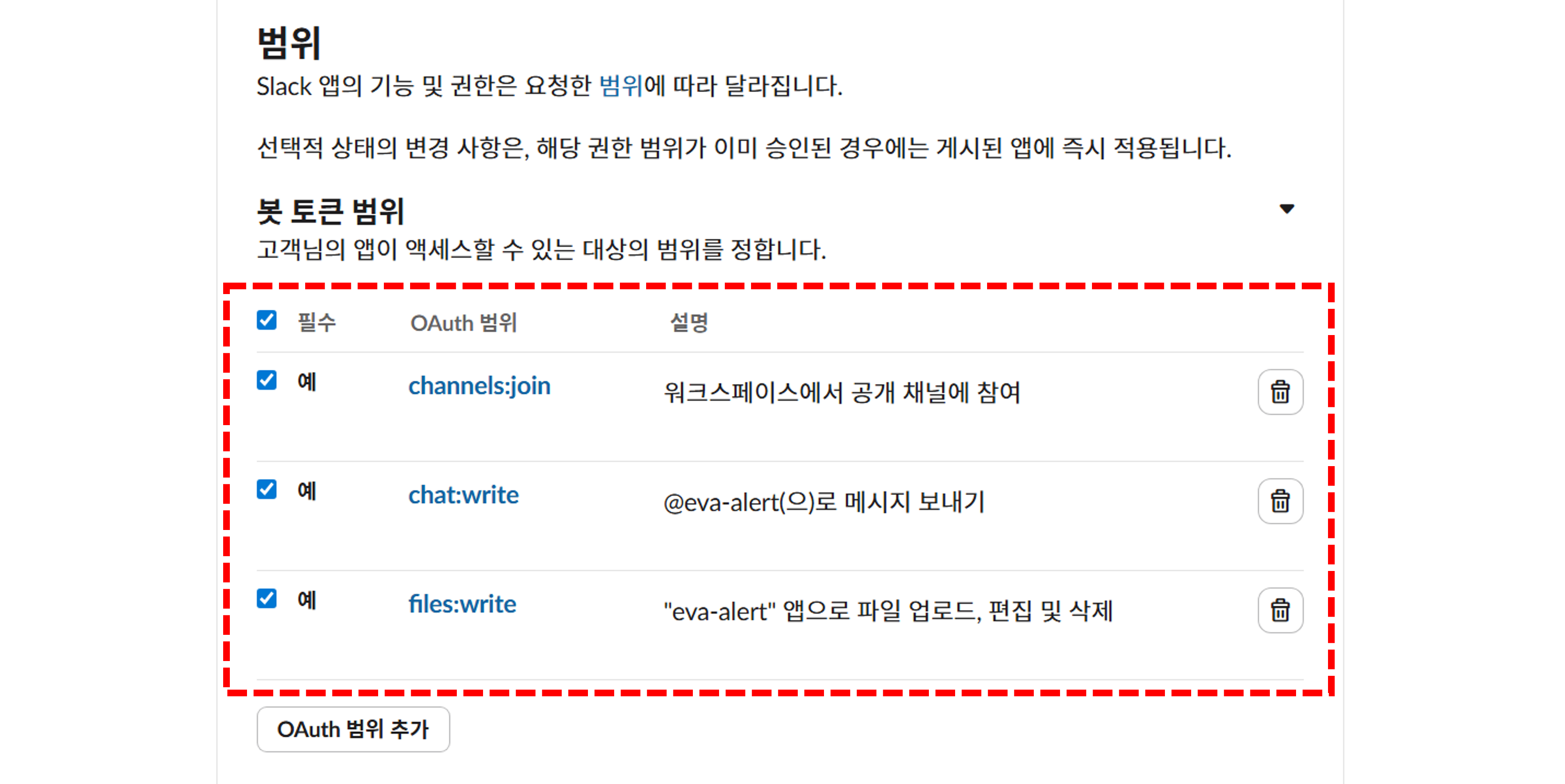
- For a private channel: add chat:write, files:write, groups:read, groups:write
Set private channel permissions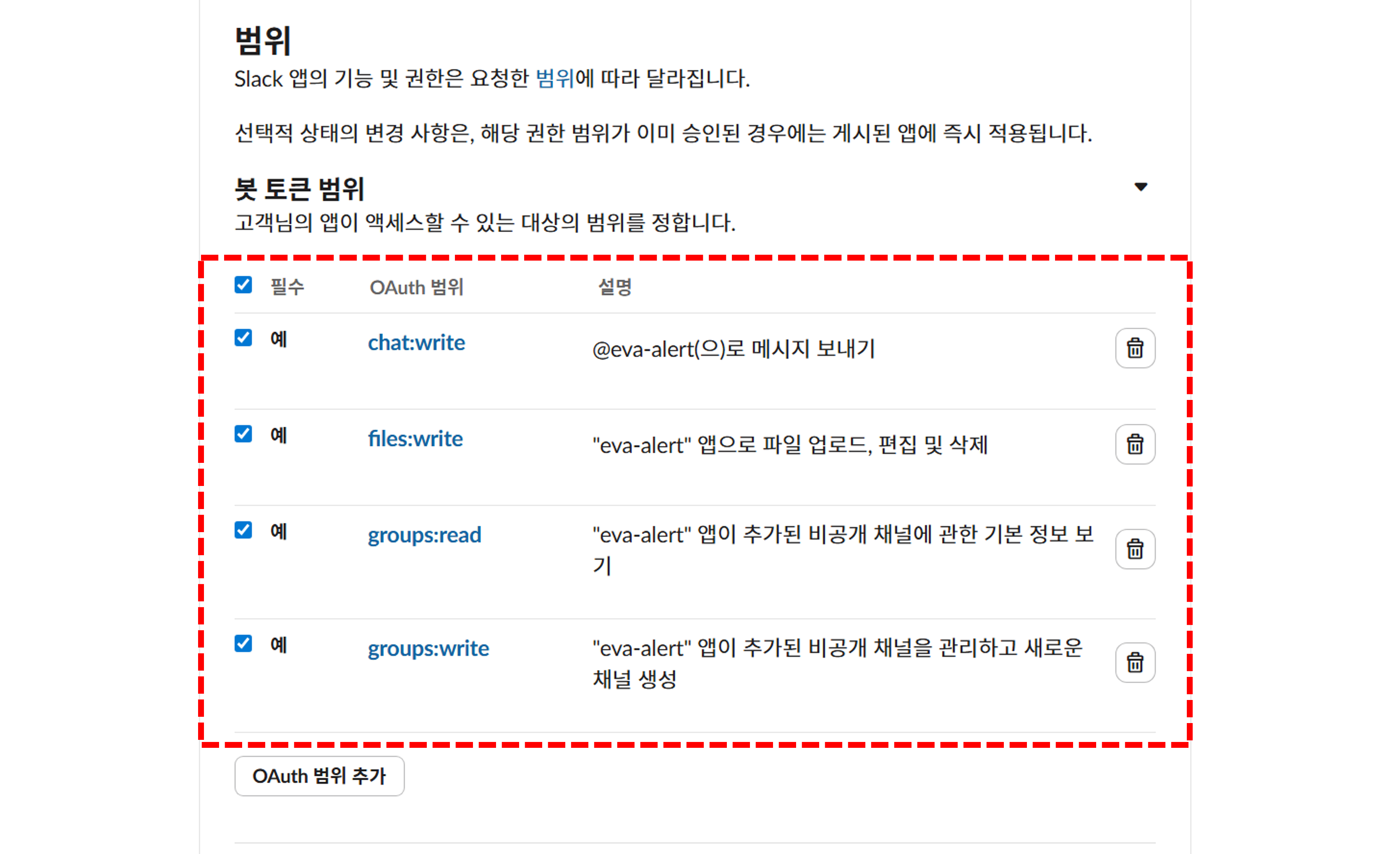
- After adding permissions, click Install to Workspace under OAuth Tokens and allow access.
Install app to workspace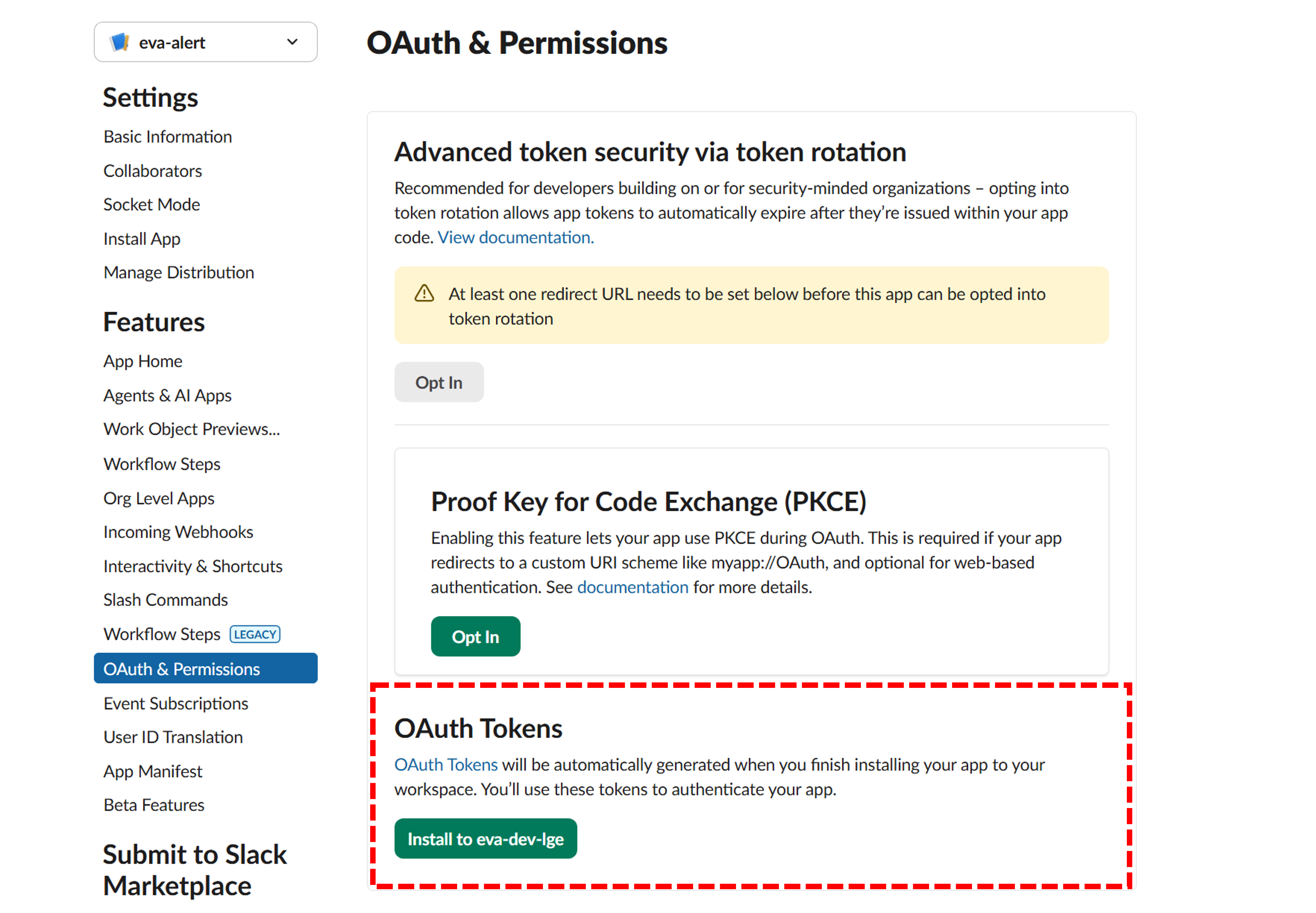
- Copy and save the generated OAuth Token.
- For a private channel, invite the app with /invite @app_name in the channel chat.
Invite app to private channel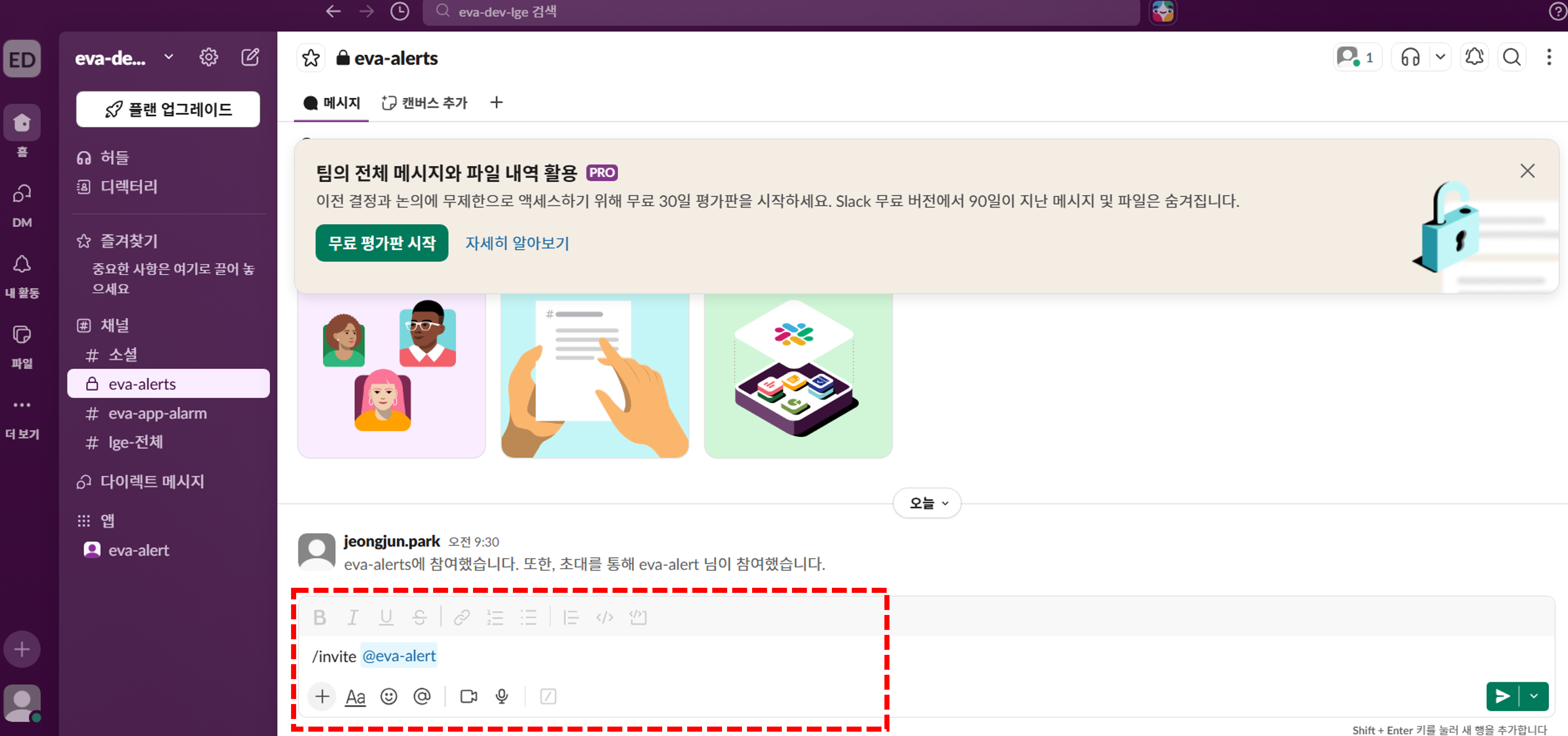
- Open Webhook settings in EVA
- Go to the monitoring page for the camera you want to configure
- Click the swirl-shaped button at the top of the screen
- Enter Slack Webhook details
- Bot Token: Enter the OAuth Token you generated (e.g., "xoxb-10...")
- Channel ID: Enter the Channel ID copied from channel details (e.g., "C0A...")
- Name: Enter an alert name (e.g., "Safety Team Slack Channel")
- Click Save
- Click "Save" to complete the Webhook configuration
- Verify alert delivery
- After a detection event, the alert is automatically sent to the configured Webhook
- Each alert includes detection time, camera info, and detection image
Set Up Categories
Step Description
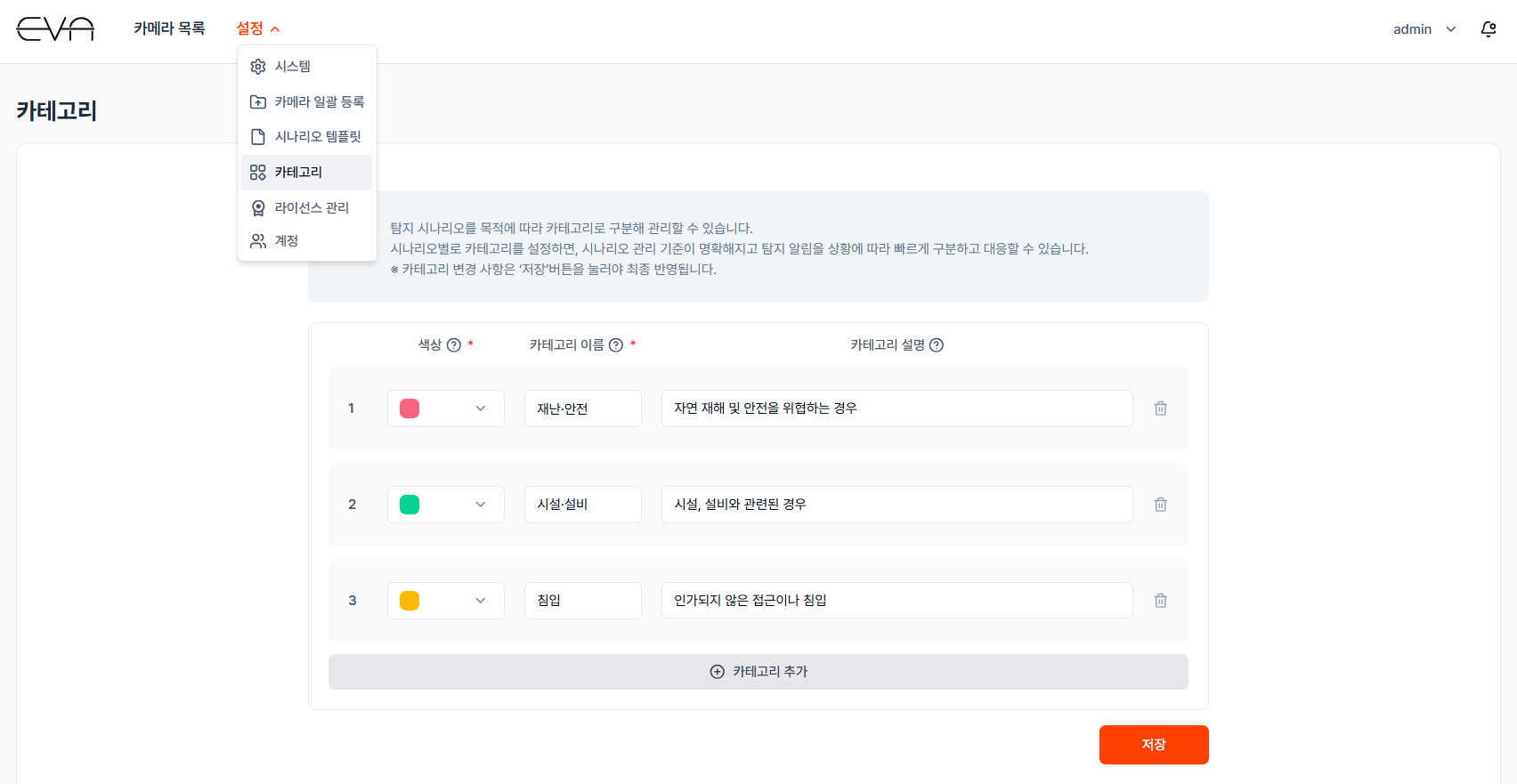
Categories let you classify detection scenarios by purpose. By pre-defining categories with distinct colors and names, you can immediately identify what type of event occurred directly from the Camera List when an alert fires. Assigning a category to each scenario when registering cameras makes it easier to manage your detection status at a glance.
Actions
- Access the Settings menu
- Click the "Settings" menu at the top of the EVA main page
- Click "Category"
- Add a category
- Click the "Add Category" button at the bottom
- Enter a color, category name, and category description
- Examples: Disaster & Safety (red), Facility & Equipment (green), Intrusion & Security (yellow)
- Save
- Click the "Save" button at the bottom-right to save your categories
- Apply categories to scenarios
- When registering or editing a camera, select a "Scenario Category" in the detection scenario step
- The assigned category is displayed in the Category column of the Camera List
Camera Favorites
Step Description
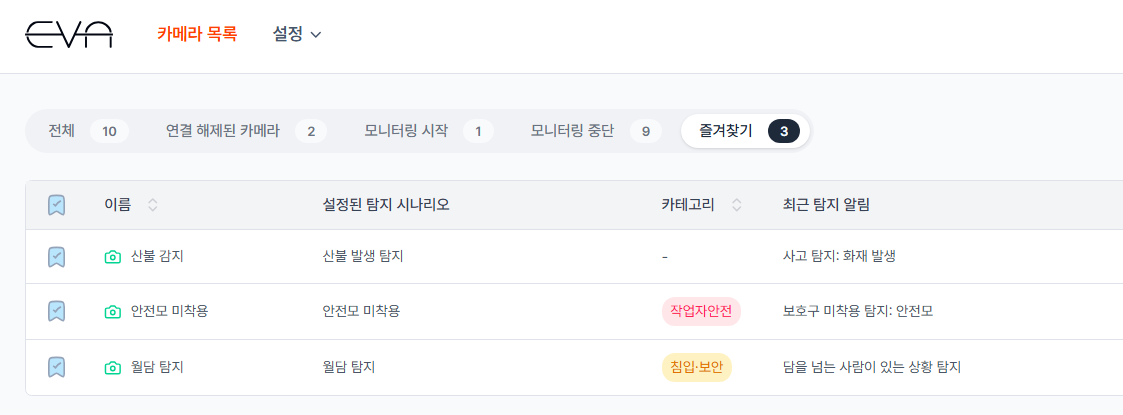
When you have many registered cameras, adding frequently checked cameras to Favorites lets you quickly access them through the Favorites tab in the Camera List.
Actions
- Add to Favorites from the Camera List
- Click the ribbon (bookmark) icon on the far left of a camera row in the Camera List to add it to Favorites
- Add to Favorites from the individual camera screen
- On an individual camera's monitoring screen, click the ribbon icon next to the camera name to add it to Favorites
- Quick access via the Favorites tab
- Click the "Favorites" tab at the top of the Camera List to see only your favorited cameras
Bulk Camera Registration
Step Description
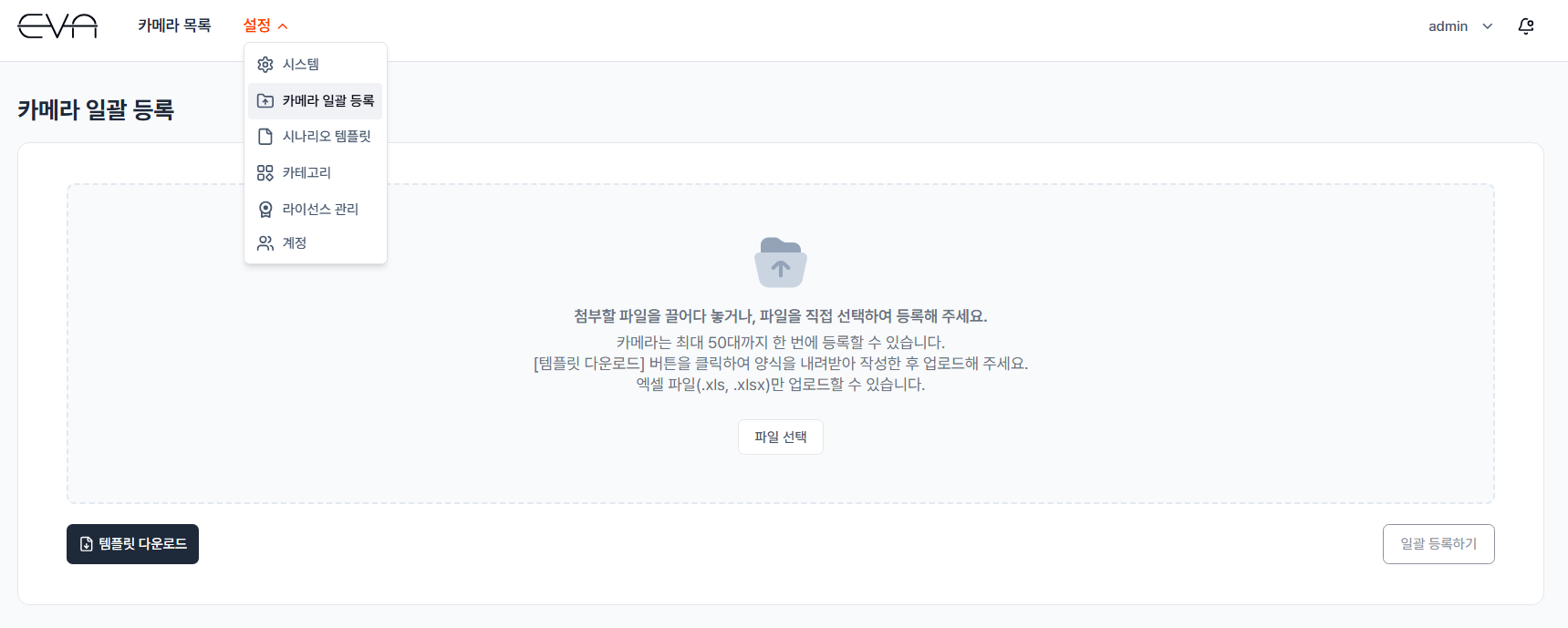
Bulk Camera Registration lets you register dozens of cameras at once using a single Excel file. Fill in the provided Excel template with camera names, RTSP addresses, and the scenario template to apply — then upload it. EVA automatically registers the cameras and applies the specified scenarios. Up to 50 cameras can be registered in a single upload.
- Use this when
- You need to deploy dozens of cameras to a new factory or site all at once
- You want to apply the same scenario template to multiple cameras in bulk
- You want to reduce repetitive camera registration work
Actions
- Access the Settings menu
- Click the "Settings" menu at the top of the EVA main page
- Click "Bulk Camera Registration"
- Download the Excel template
- Click the "Template Download" button at the bottom-left to download the registration form
- Only Excel files (.xls, .xlsx) can be uploaded
- Fill in the template
- Enter the following information in the downloaded Excel file
- Camera Name: Identifying name for each camera
- RTSP URL: Camera streaming URL
- Scenario Template: Name of the pre-saved scenario template to apply
- Upload the file
- Drag and drop the completed Excel file onto the upload area, or click "Select File"
- Click "Register All"
- Click the "Register All" button at the bottom-right
- EVA automatically registers the cameras and applies the specified scenario templates
- If any cameras fail to register, detailed error information is displayed so you can identify and resolve issues immediately