Customize for Your Site
What You'll Learn in This Guide
After registering a camera and starting monitoring, are you seeing too many alerts — or not enough? This guide shows you how to fine-tune EVA's detection performance to match your real-world environment. Once calibrated, the AI becomes more accurate over time.
Adjusting per-object confidence thresholds (Threshold)
Image Guided Detection (detecting new custom objects)
Providing feedback to improve accuracy
Detection Areas (focused zone monitoring)
Adjust Object Confidence Thresholds
Step Description
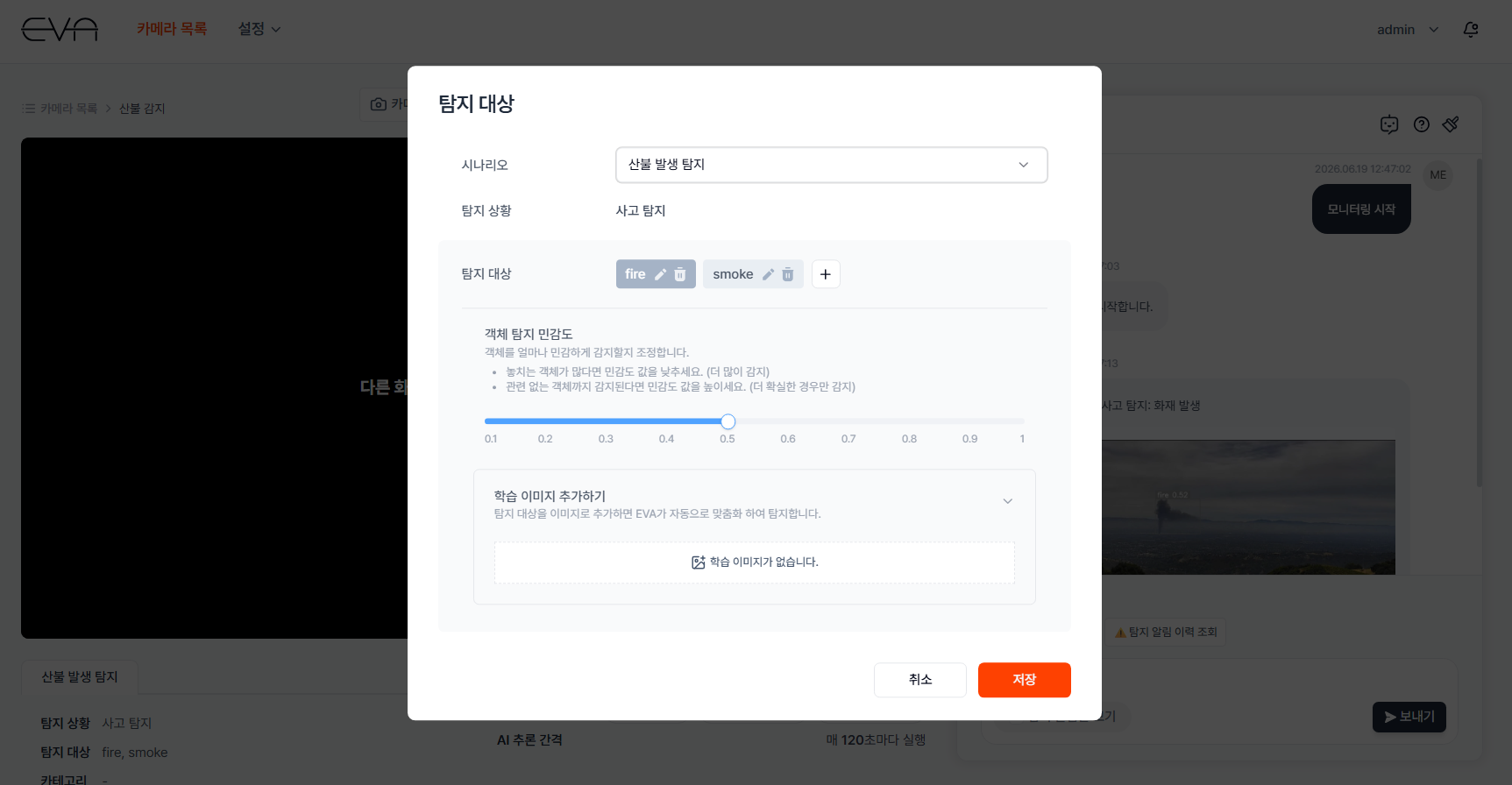
Every time EVA spots an object in the camera feed, it internally calculates a confidence score between 0 and 1. The Threshold is the cutoff for this score — only detections at or above the threshold are counted as valid. Lowering the threshold means EVA will alert even when slightly uncertain, while raising it means alerts only fire when EVA is highly confident.
- Too few detections (missed events) → Lower the sensitivity value
- If workers clearly not wearing hard hats are going undetected, lower the sensitivity so EVA sends alerts even in borderline cases
- Too many detections (false positives) → Raise the sensitivity value
- If workers who are properly wearing hard hats keep triggering alerts, raise the sensitivity so EVA only fires when it's more certain
Actions
- Open the camera monitoring page
- Select the camera you want to adjust
- Click the "Detection Targets" button at the top of the screen
- Click the "Detection Targets" button in the top tab of the camera monitoring screen
- The "Detection Targets" popup opens
- Select the scenario and detection target
- Select the scenario you want to adjust from the scenario dropdown
- Click the object whose sensitivity you want to change from the detection target list
- Example: select the "fire" or "smoke" object
- Adjust the Detection Sensitivity slider
- Slide the "Detection Sensitivity" slider left or right
- Slide right (higher) to reduce false positives; slide left (lower) to reduce missed detections
- Save changes
- Click the "Save" button to apply your changes
Image Guided Detection
Step Description
Standard AI models detect commonly known objects like people, vehicles, and hard hats. But your site may have specialized objects that the AI hasn't been trained on. Image Guided Detection lets you provide just a few images of the object you want to detect — the AI memorizes its appearance and starts recognizing it in real time.
- Use this when
- You need to detect objects the AI has never seen, such as company-made safety gear or custom signs
- You want to detect defects in specific product models or parts produced in your factory
- You want to monitor site-specific equipment (dedicated safety fences, specialized workbenches, etc.) for anomalies
Actions
- Click the "Detection Targets" button on the camera monitoring screen
- Click the "Detection Targets" button in the top tab of the camera monitoring screen
- The "Detection Targets" popup opens
- Select the scenario and detection target
- Select the scenario you want to apply Image Guided Detection to from the dropdown
- Click the detection target you want to add reference images for
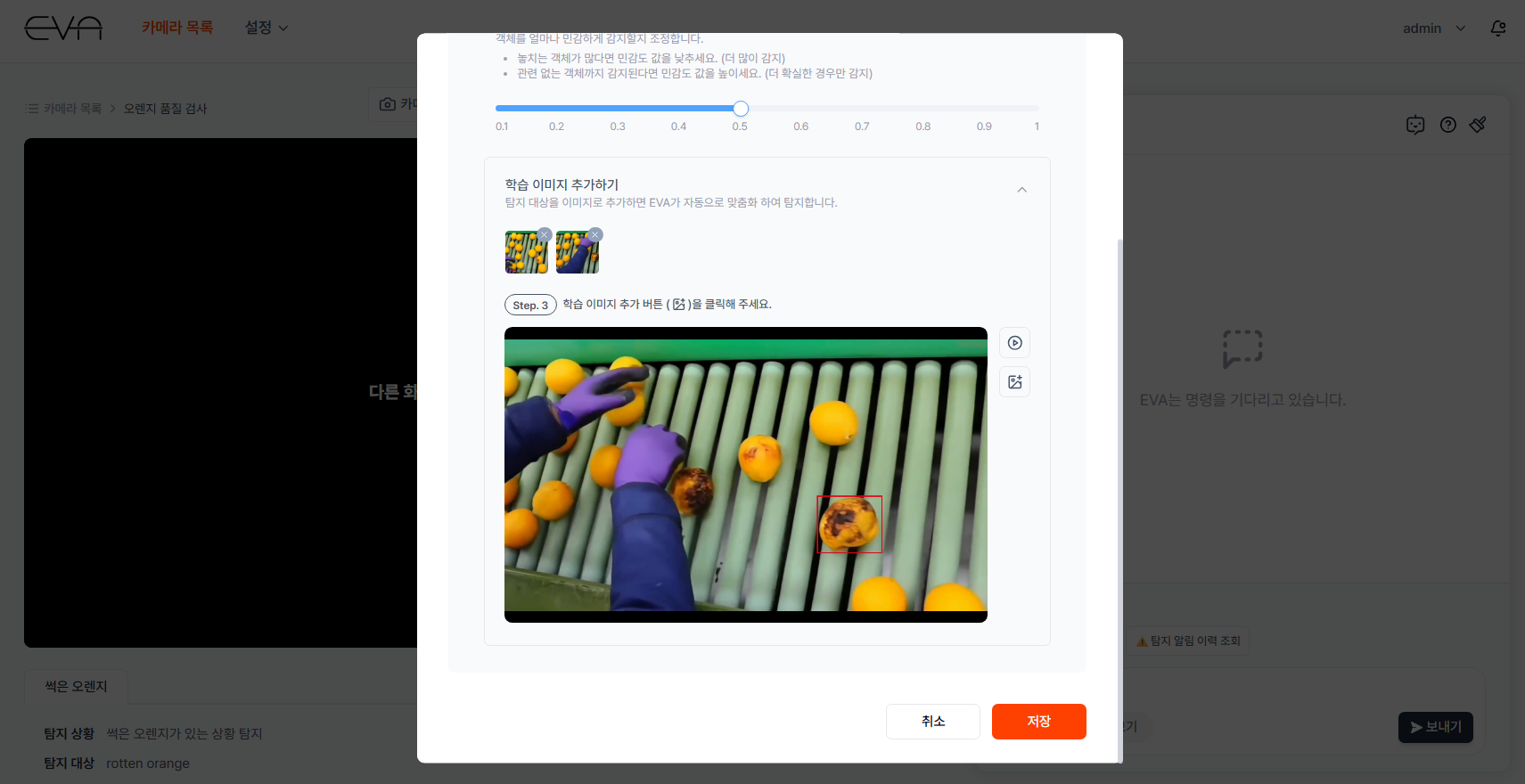
- Expand the "Add Reference Images" section
- Click the "Add Reference Images" item at the bottom of the popup to expand it
- A still image from the current camera feed is displayed
- Draw a bounding box around the target object
- When the object you want to learn appears on screen, click the pause button
- Draw a box with your mouse that clearly encompasses the target object in the displayed image
- Click the Add Reference Image button [+]
- Click the "Add Reference Image" button ([+]) to add the selected image as a reference
- Adding multiple images from different angles or lighting conditions improves detection accuracy
- Click "Save" to apply
- Click "Save" to complete the Image Guided Detection setup
- From this point on, the camera will detect the target object based on the provided reference images
Provide Feedback
Step Description
You can give feedback on EVA's alerts with a single button click — correct or incorrect. As feedback accumulates, the AI learns to filter out similar false positives on its own, and alert accuracy improves over time. Accumulated feedback data is also available as a detection reliability metric in the dashboard.
Actions
- Open the camera monitoring screen
- Select the camera you want to provide feedback for and open the monitoring screen
- Check detection alerts in the EVA chat
- Review detection alert messages received in the EVA chat
- Click "Correct" or "Incorrect" below the alert
- Click "Correct" if the detection was accurate, or "Incorrect" if it was a false positive
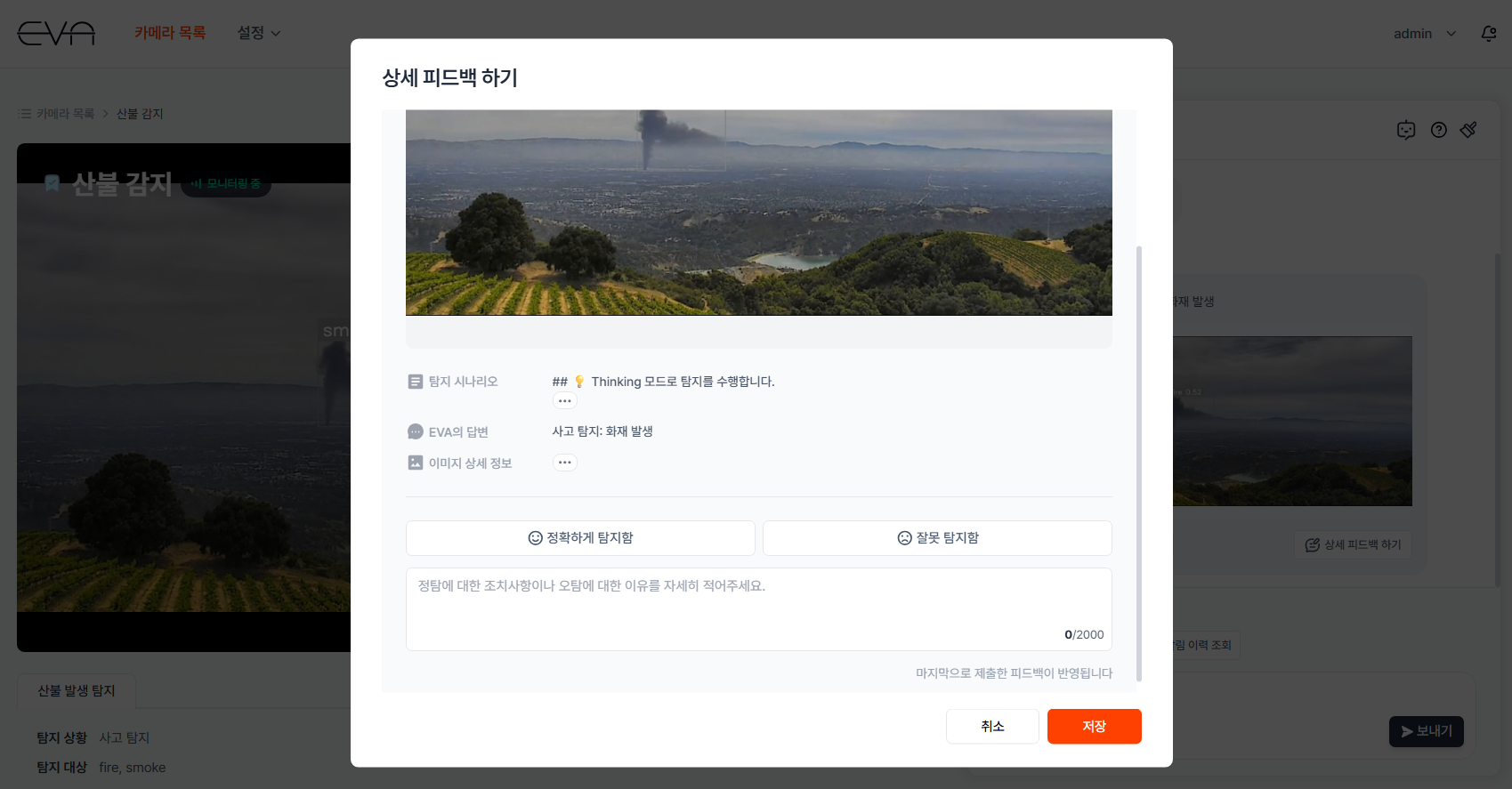
- Click "Detailed Feedback" to add more context with the image
- If you want to leave more specific feedback, click the "Detailed Feedback" button
- You can review the detection image, detection mode, and scenario information while selecting your correct/incorrect feedback
- Write your feedback
- Explain the specific reason for the false positive
- Example: "This person is actually wearing a hard hat — it looks like the angle caused the mistake"
- Submit the feedback
- Click the "Submit" button to send your feedback to EVA
Set Detection Areas
Step Description
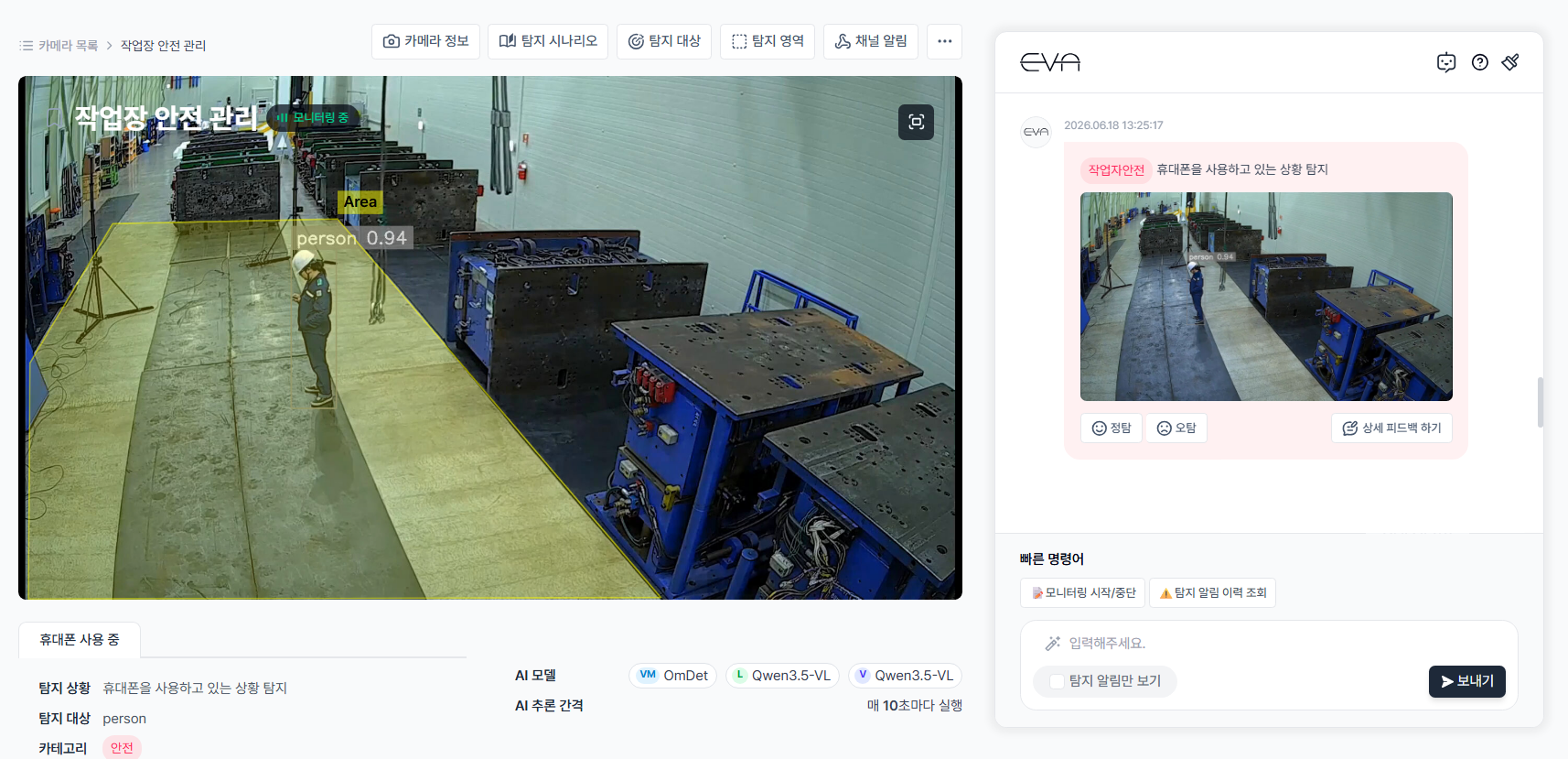
When a camera covers a wide area, monitoring the entire frame may generate alerts from zones you don't care about. With Detection Areas, you can select specific zones within the camera view to focus monitoring on. Only objects inside the configured area are targeted for detection, effectively reducing unnecessary false positives. Detection area names must be entered in English only.
- Use this when
- You want to monitor only the machinery zone on a factory camera and exclude the walkway
- You want to selectively monitor only fire lane or disabled parking spots on a parking lot camera
- You want to monitor entry/exit only in the secure storage area of a warehouse camera
- Movement in a corner of the frame (trees, shadows, etc.) keeps triggering false positives and you want to exclude that area
Actions
- Click the "Detection Area" button on the camera monitoring screen
- Click the "Detection Area" button in the top tab of the camera monitoring screen
- The detection area management screen opens
- Enter the detection area name
- Enter the name of the zone you want to define in English
- Examples: "danger_zone", "restricted_area", "cargo_area"
- Area names must be written in English only
- Draw a polygon area
- Click on the camera feed with your mouse to place points and create a polygon-shaped detection area
- Continue clicking along the boundary of the target zone to complete the polygon
- Complex zone shapes can be precisely defined using multiple polygon points
- Save
- Click "Save" to complete the detection area configuration
- Once saved, the defined area will be displayed on the monitoring screen
- Verify on the monitoring screen
- Confirm that the detection area is displayed on the live feed
- From now on, EVA will only detect objects inside the defined area — events outside the area will not trigger alerts