Quick Start Experience
What You'll Learn in This Guide
Start here when using EVA for the first time or when registering a new camera. This guide walks you through the entire core flow — from connecting a camera to setting up detection scenarios, selecting AI models, and starting real-time monitoring. Following this guide once will give you a clear understanding of how EVA works at its foundation.
How to connect a camera to EVA using an RTSP URL
How to write and generate detection scenarios in natural language
How to select the right AI model for your use case
Setting the detection interval
Starting real-time monitoring and checking alerts
Prerequisites Before Starting
Preparing the following items in advance will ensure a smooth experience with EVA.
Verify Your Try EVA Account
Check the account information received after your trial application (delivered via email)
Have your EVA login URL and password ready
After logging in, confirm that the Camera List page loads correctly
Prepare an RTSP URL
If using your own camera: Find your camera's RTSP URL
- Example URL format:
rtsp://username:password@ip-address:port/stream - Refer to your camera manufacturer's documentation for the exact RTSP path
- Example URL format:
If using a demo camera: You can use the cameras already provided in your Try EVA account as-is
Access the Camera List Page
Step Description
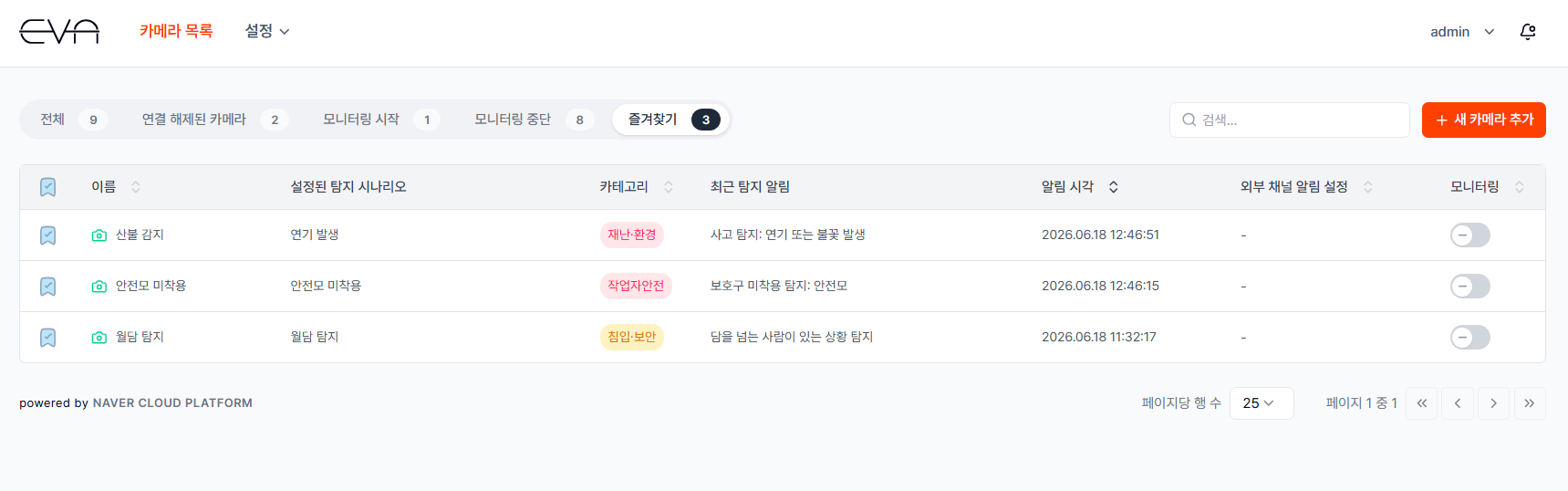
The Camera List page is the main screen that appears right after logging into EVA, where you can manage all registered cameras at a glance. You can check each camera's detection scenario, monitoring status, and recent alert content here all at once. To register a new camera, click the "+ New Camera" button.
Actions
- Log in to EVA
- Go to the EVA access URL provided during trial signup
- Enter your account credentials (ID/password) received via email
- The Camera List page will appear automatically after login
- Information available on the Camera List
- The Name column displays the camera name set by the user.
- The Configured Detection Scenario column shows the scenario names applied to the camera. Up to 4 scenarios can be registered per camera.
- The Category column shows the category of the most recent detection event.
- The Recent Detection Alert column displays the most recent alert message.
- The Alert Time column shows when the last alert was triggered.
- The External Channel Notification column displays the service name (Teams, Slack, etc.) if an external channel has been configured.
- The Monitoring column features a toggle button to control monitoring On/Off for each individual camera.
Camera Settings
Step Description
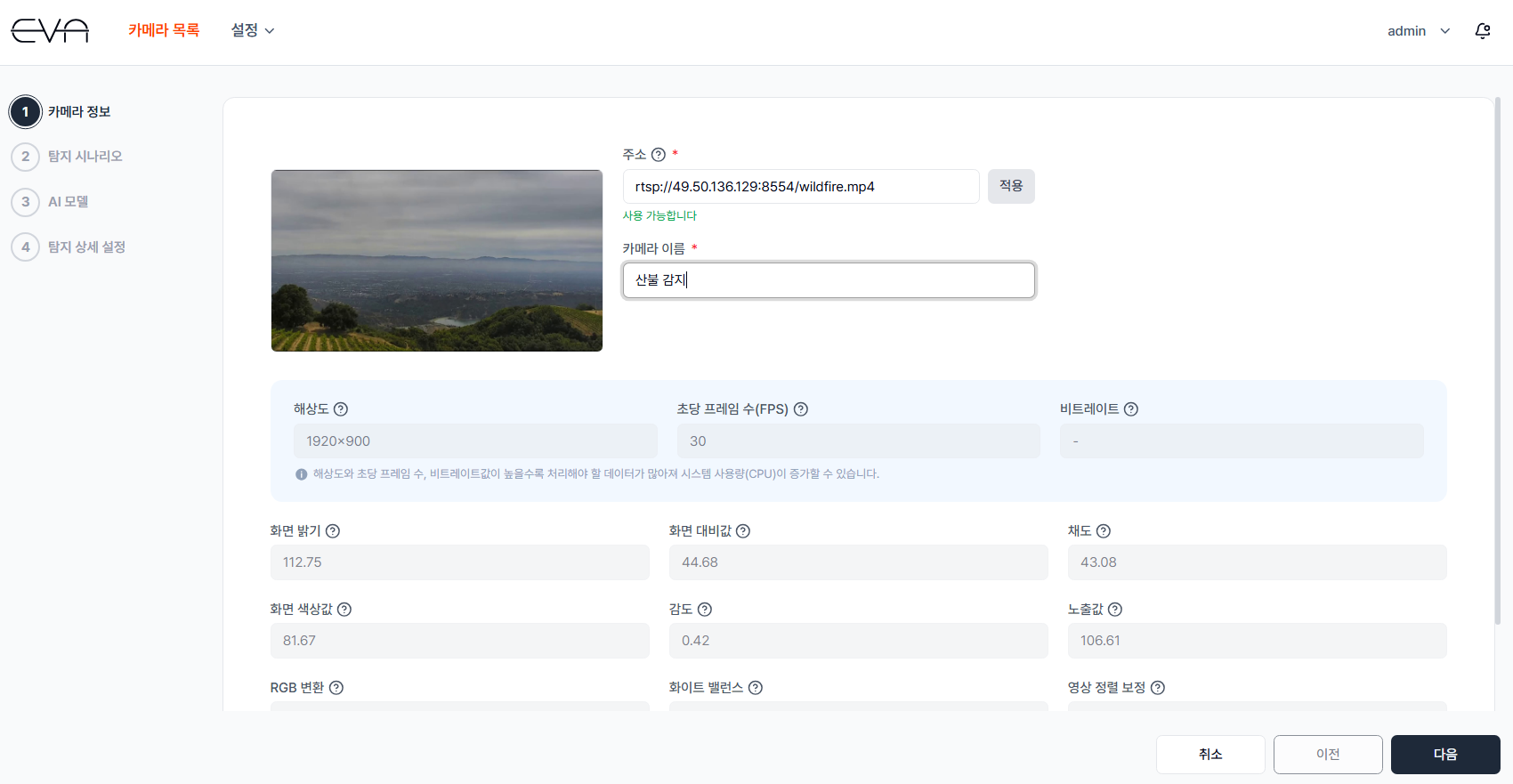
Clicking the "+ New Camera" button on the Camera List main page takes you to the camera settings page. Enter the camera's RTSP address and click Apply to automatically retrieve camera information. Once you set the camera name, the basic connection is complete.
Actions
- Enter the Source (RTSP URL)
- Paste your RTSP URL into the address input field
- URL format:
rtsp://username:password@IP-address:port/stream-path - Example:
rtsp://admin:password@192.168.1.100:554/stream
- Click Apply
- Click the "Apply" button — EVA will attempt to connect to the camera
- On success: A still image from the camera appears in the left Preview area, and camera details such as resolution, frame rate, brightness, and saturation are filled in automatically
- If the URL is already registered: A message saying "The URL you entered is already registered" will appear
- On failure: Check that the RTSP URL format is correct, the camera is powered on, and the network firewall and RTSP port are open
- Set the Camera Name
- Enter a name that clearly identifies this camera
- When managing multiple cameras, it is recommended to include the location or purpose in the name (e.g., "1F Lobby Entrance", "Factory Line A")
Detection Scenario Setup
Step Description
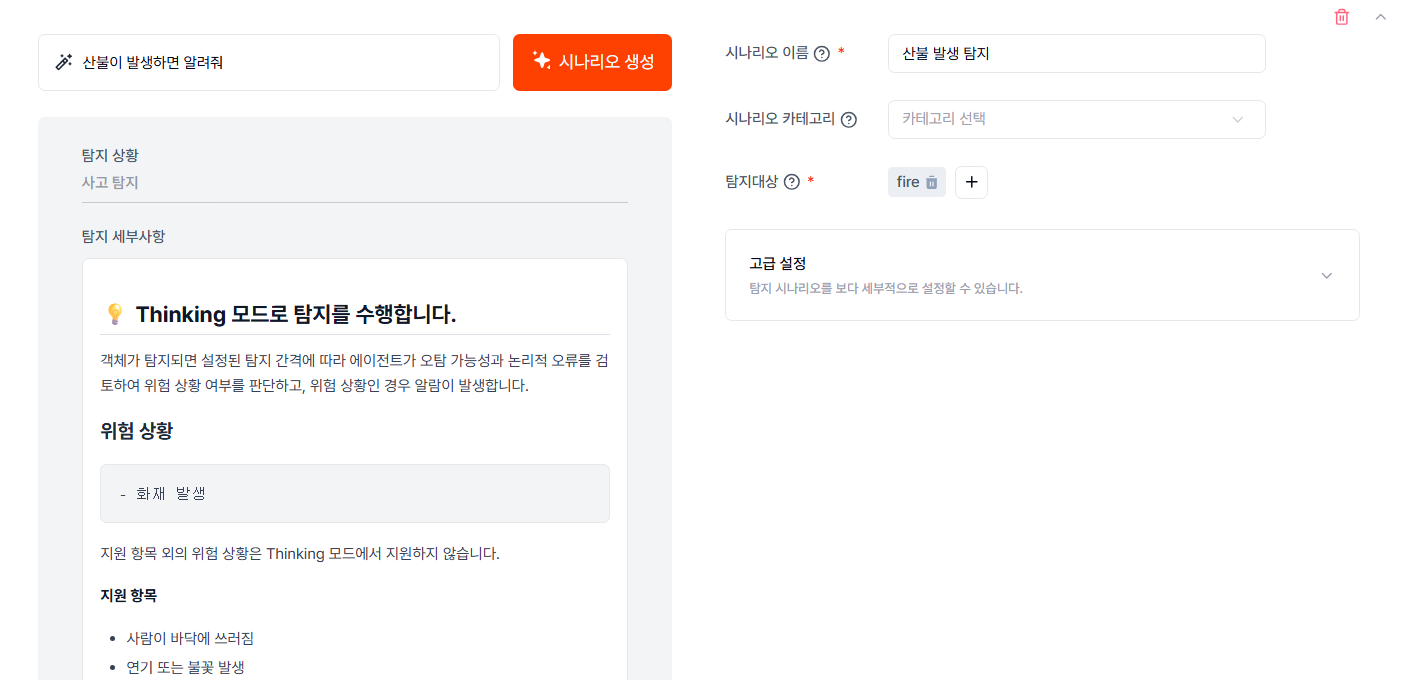
Describe in natural language what situation you want to detect, and the EVA Agent will automatically generate a structured scenario and select the most appropriate detection mode. Simply type it the way you'd say it — "Alert me if a worker isn't wearing a hard hat." Up to 4 scenarios can be registered per camera, and frequently-used scenarios can be saved as templates for reuse across multiple cameras.
Actions
- Select Scenario Method
- Method 1. New: Write a detection scenario prompt directly to create a scenario tailored to this camera → Proceeds to the prompt writing step
- Method 2. Load Template: Load a pre-saved scenario template and apply it. Useful when applying the same detection conditions to multiple cameras → Proceeds to the review and edit step
- Up to 4 scenarios can be registered per camera
- Write the Scenario Prompt
- Freely describe the situation you want to detect in the scenario creation field using natural language
- The more specific and clear your description, the more accurate the detection
- Examples: "Alert me if a worker is not wearing a hard hat", "Alert me if a wildfire breaks out", "Alert me if the door opens or someone approaches at night", "Alert me if someone enters a restricted area"
- Click the "Generate Scenario" Button
- Clicking "Generate Scenario" triggers the EVA Agent to analyze your input and automatically create a structured scenario
- A detection mode is automatically configured based on the scenario's characteristics (Stepwise, PPE, Thinking, Simple). For example, hard hat detection automatically applies PPE Mode, and fire/smoke detection applies Thinking Mode
- Detection targets are also generated automatically
- Review and Edit the Generated Scenario
- Verify that the EVA Agent accurately reflected your intent
- If the content doesn't match, you can modify the prompt and regenerate, or directly edit the generated content
- Detection targets can also be added, modified, or deleted as needed
- Detection mode, frame mode, and other detailed settings can be reviewed and adjusted under Advanced Settings
- If scenario group management is needed, you can directly select a Scenario Category. (Categories must be created in advance under Settings > Category)
AI Model Selection
Step Description
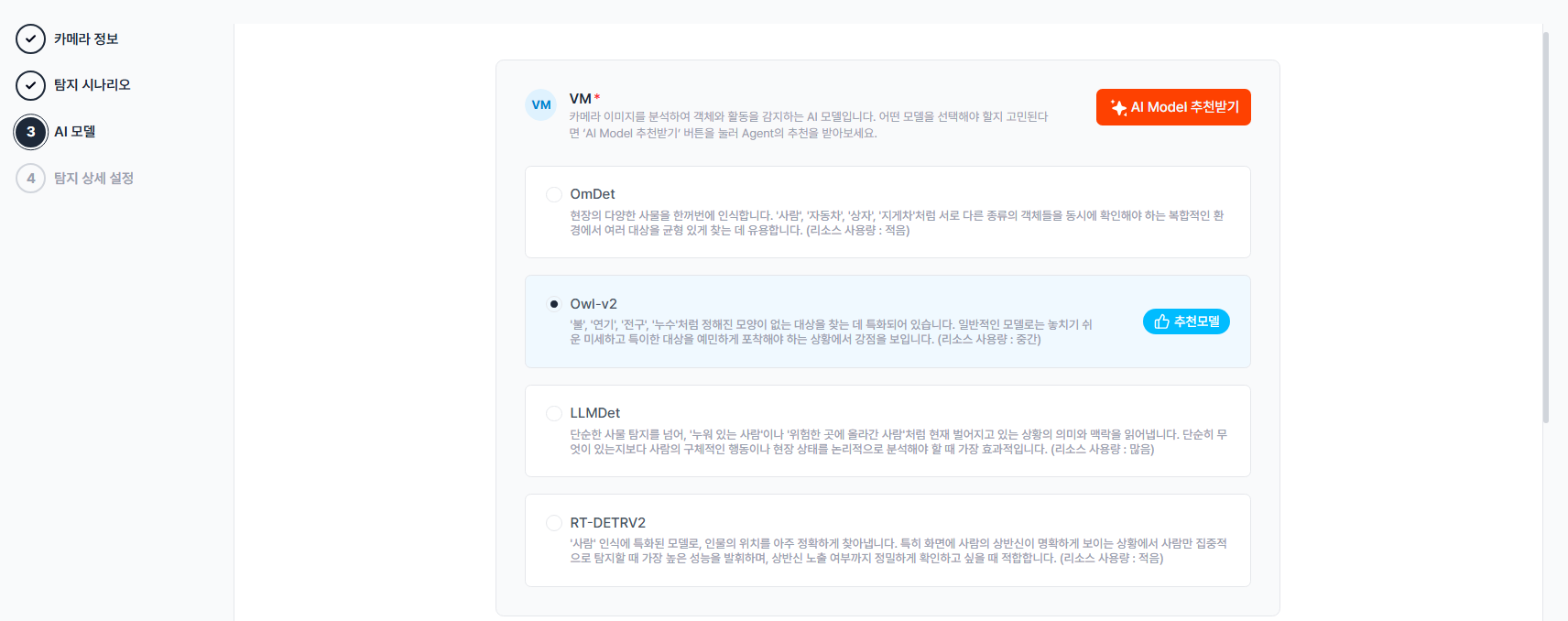
Select the AI model that best fits your detection scenario. The VM model, which detects objects from the camera feed, performs differently depending on the detection target and environment. If you're unsure which model to pick, use the AI Model Recommendation feature.
Actions
- AI Model Recommendation (Optional)
- Click the "AI Model Recommendation" button to automatically receive a recommendation for the most suitable AI model based on the detection scenario set in the previous step
- This is convenient when you're unsure about model characteristics
- Select a VM (Vision Model)
- An AI model that analyzes camera images to detect objects and activities. Choose from the following 4 models based on your environment. If you're unsure, use the "AI Model Recommendation" button above.
- OmDet: Recognizes a wide variety of objects in the scene at once. Useful for balanced detection in complex environments where multiple different types of objects — like people, vehicles, boxes, and forklifts — need to be monitored simultaneously. (Resource usage: Low)
- Owl-v2: Specialized in finding targets without a defined shape, such as fire, smoke, lightbulbs, or leaks. Excels at sensitively capturing subtle and unusual targets that standard models tend to miss. (Resource usage: Medium)
- LLMDet: Goes beyond simple object detection to read the meaning and context of what is happening — such as "a person lying down" or "a person climbing somewhere dangerous." Most effective when you need to logically analyze specific human behaviors or site conditions rather than just detecting what's present. (Resource usage: High)
- RT-DETRV2: A model specialized in recognizing people, with highly accurate localization. Delivers the best performance when detecting only people in scenes where the upper body is clearly visible, and is ideal when you also need precise verification of upper body exposure. (Resource usage: Low)
- Select an LLM Model
- A language AI that understands chat commands entered by the user and the text of detection scenarios
- Currently available model: Qwen3.5-VL
- Select a VLM Model
- An AI that compares detected situations against the detection scenario and makes the final decision on whether to send an alert
- Currently available model: Qwen3.5-VL
Detection Interval
Step Description
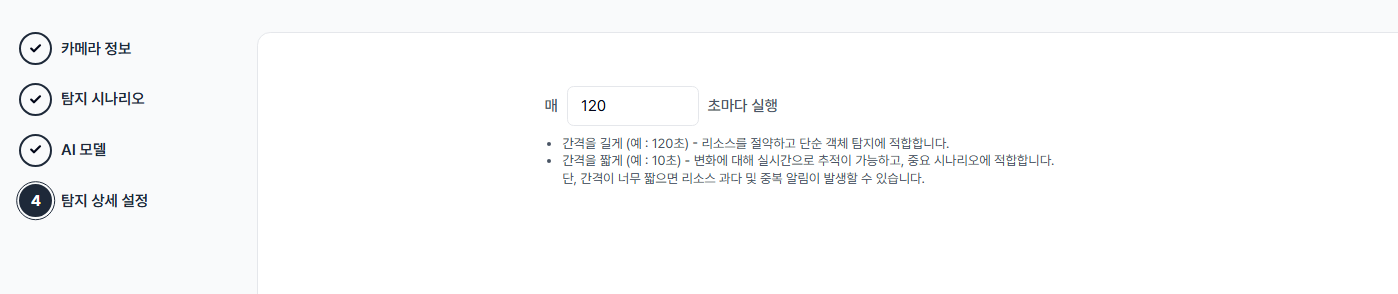
Set the detection interval at which EVA analyzes the camera feed. For example, setting it to 30 seconds means EVA analyzes a frame every 30 seconds and determines whether a detection event has occurred. A shorter interval brings detection closer to real time but consumes more system resources.
Actions
- Enter the Detection Interval
- Enter the detection interval in seconds at which EVA should analyze the camera feed and perform detection
- The default is 120 seconds. Start with the default and adjust as needed while monitoring
- Longer interval (e.g., 120s): Conserves resources — suitable for scenarios where checking status matters more than tracking rapid changes
- Shorter interval (e.g., 10s): Tracks changes in near real-time or enables immediate response in urgent scenarios. Note that very short intervals may lead to excessive resource usage
Save & Start Monitoring
Step Description
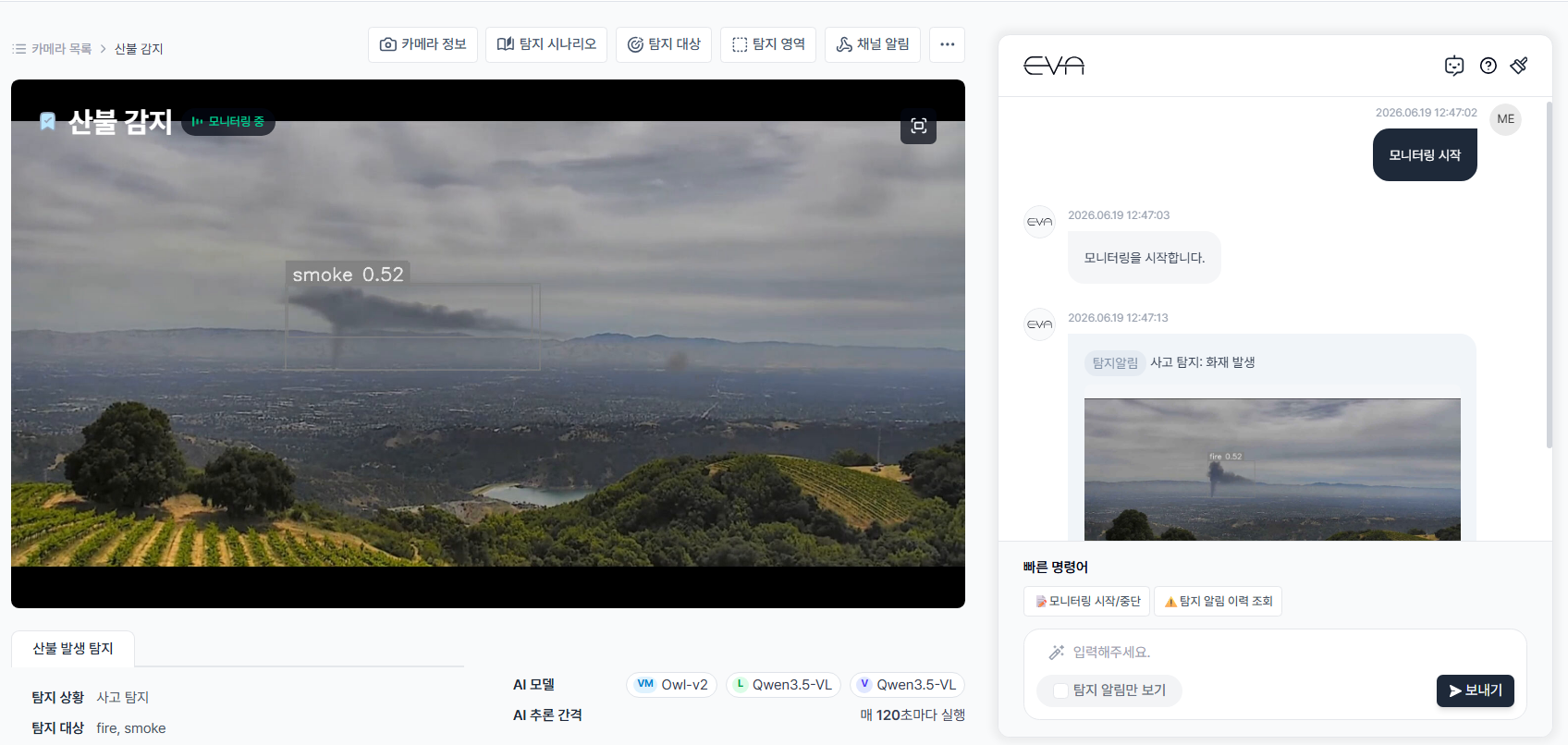
Once all settings are complete, click Save to register the camera in EVA. After saving, you'll be redirected to the Camera List. Click the registered camera name to open the detail page and start monitoring right away. When monitoring is on, EVA analyzes the feed at the configured detection interval and sends alerts to the EVA chat whenever the detection scenario conditions are met. Each alert includes a detection image and an AI-generated description of the situation, so you can immediately understand what happened on-site.
Actions
- Click the Save Button
- Click the "Save" button at the bottom of the page
- Once saved, you are automatically redirected to the Camera List page
- Open the Camera Detail Page
- Click the name of the camera you just registered in the Camera List
- You will be taken to the camera detail page
- Start Monitoring
- You can start monitoring using any of the following three methods
- Click "Start Monitoring" in Quick Commands
- Type "start monitoring" in the EVA chat
- Click the toggle button on the right side of the camera row in the Camera List page
- Confirm that the monitoring indicator appears in the top-left of the screen
- View Real-Time Detection Results
- Object detection results are displayed in real time on the left side of the screen
- Each detected object shows a confidence score (0.0–1.0), which can be referenced when adjusting Threshold values later. For Threshold adjustment, see here.
- Check Alerts
- When a situation matching your scenario occurs, an alert appears in the EVA chat
- Each alert includes the detection time, a detection image, and a VLM-generated description of the situation
- If a Webhook is configured, alerts are also sent simultaneously to external channels such as Teams. For more details, see here.
- Stop Monitoring
- Click "Stop Monitoring" in Quick Commands, or type "stop monitoring" in the chat
- You can also toggle monitoring On/Off at any time using the toggle button in the Camera List